
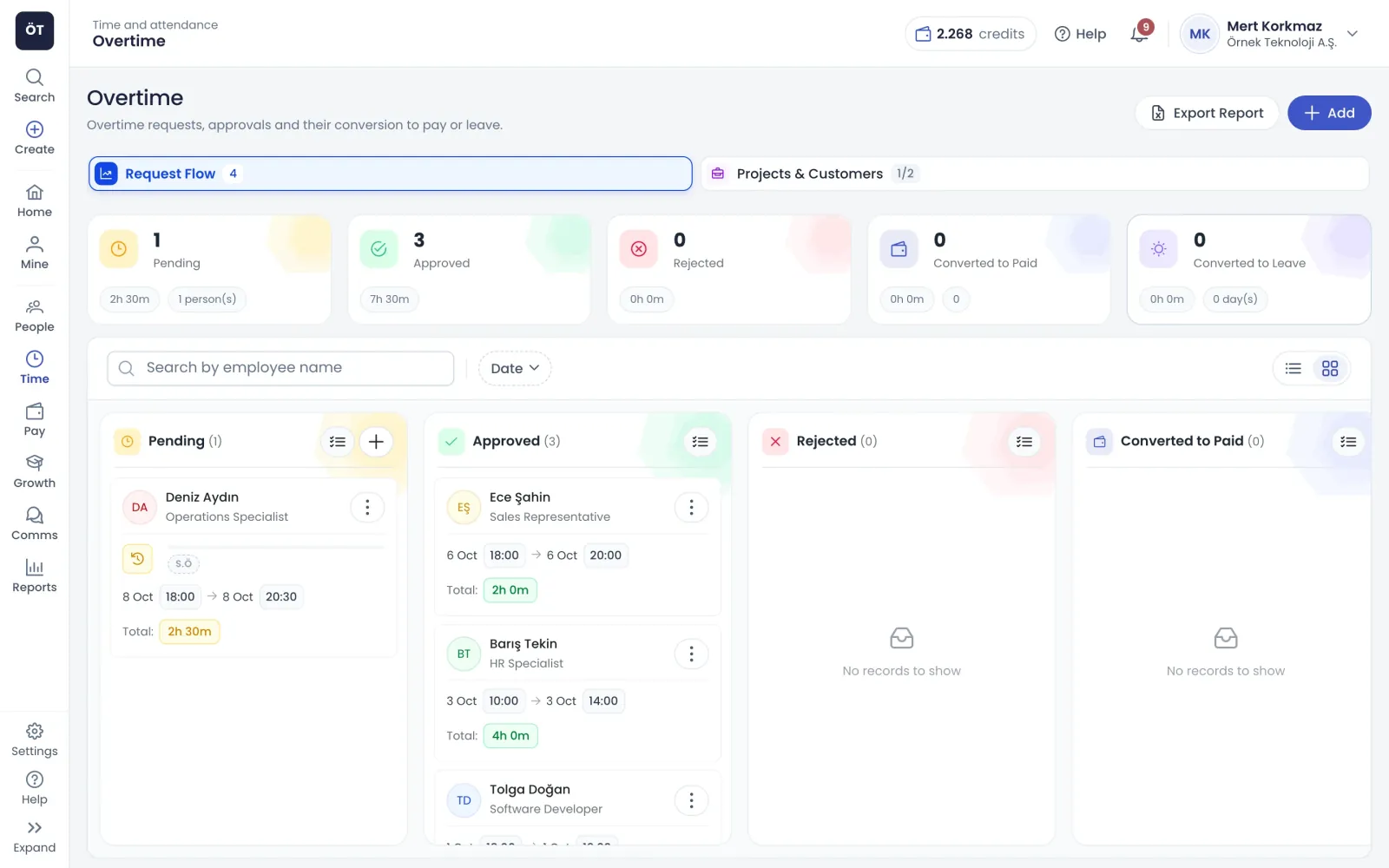
Requests, approval, conversion and payment status move through a single flow, and the board shows where every record stands.
Requests
Employees request, managers add in bulk
Employees enter a date, start time and end time to request overtime; the duration is calculated for them, and anything past midnight is saved as ending the next day. Managers add overtime for several employees at once or upload an Excel template. Each entry can optionally be linked to a project or a customer.
Multiple entry adds the same record for several people
Excel template upload with column mapping
Project and customer tags as separate report columns
Admins can save records as already approved
Employees request, managers add in bulkMultiple entry adds the same record for several peopleExcel template upload with column mappingProject and customer tags as separate report columns
Approval
Overlaps are blocked and approval moves step by step
An employee can only have one overtime record for any given date and time range. A new entry that overlaps a pending, approved or converted record is not saved, and the warning shows the existing record. Requests enter the department's approval flow, each approver is notified, and approved hours appear in their own timesheet column.
Back-to-back time ranges do not count as overlaps
Multiple entry lists overlapping employees by name
List and board views with status tabs
Export to Excel matching your current filters
Overlaps are blocked and approval moves step by stepBack-to-back time ranges do not count as overlapsMultiple entry lists overlapping employees by nameList and board views with status tabs
Conversion
Turn approved overtime into pay or leave
When converting to pay you pick a multiplier, the hourly rate comes from the employee's salary record and the total is calculated. When converting to leave, hours times the multiplier are divided by your daily working time and added as an entitlement under the chosen leave rule. Every conversion is confirmed by SMS code and produces a TÜBİTAK time-stamped document.
Working day, rest day and public holiday multipliers
Net or gross amount and currency selection
Convert approved records to pay in bulk
Optional notification e-mail to the employee
Turn approved overtime into pay or leaveWorking day, rest day and public holiday multipliersNet or gross amount and currency selectionConvert approved records to pay in bulk
Rules
Set overtime rules to fit your company
Multipliers, visibility and payment status are managed in settings without disturbing past records.
Pay multipliers
Choose the multipliers available for working days, weekly rest days and public holidays from options that map to payroll. Each row can offer several multipliers, and changes apply only to new conversions, leaving earlier ones as they were.
Multiplier options from x0.5 to x4
Defaults of x1.5 for working days, x2 for holidays
Previously converted records are not affected
Leave conversion basis
Decide how many hours make up one day of leave when converting overtime: 7.5 hours, 8 hours 20 minutes or 9 hours. A sample line on screen shows how much overtime equals one day of leave with your choice.
Three options matching common working weeks
Worked example line shows the effect
Days already converted to leave stay unchanged
Who sees whose overtime
By default each employee sees only their own records. Visibility rules can extend that to a branch, department, position, direct reports or the whole company. The rule applies to both the board and the summary cards.
Assign rules per employee or in bulk
Hourly rates visible only to authorised users
Approvers always see requests awaiting them
Paid status and payroll
If you use the payroll module, only conversions marked as paid reach the payroll for their month as overtime hours. A payment inside a closed period cannot be set back to unpaid. Every change is logged with who, when, old and new value.
Changes show immediately in an open period
Moves to the next open period after closing
Change history kept together with notes
How it works
Overtime in four steps
Configure settings
Set pay multipliers and the daily working time used for leave conversion, and prepare project and customer lists if needed.
Define approval flows
Set approval steps for each department; requests in departments without a flow are approved automatically.
Answer requests
Approvers approve or reject pending requests from the list or the board, and the employee is told the outcome.
Convert and pay
Convert approved overtime to pay or leave with an SMS code; amounts marked as paid enter the payroll period.
Connected modules
Modules connected to overtime
An overtime record links timesheets, leave and payroll together.
How does overtime tracking prevent overlapping records?
An employee can only have one overtime record for a given date and time range. A new entry that overlaps a pending, approved, or converted record is not saved, and the warning shows the existing one. Rejected records are not checked. Back-to-back ranges such as 18:00 to 20:00 and 20:00 to 22:00 are not treated as overlaps.
Is overtime converted into pay or into leave?
Either, decided record by record. Converting to pay means choosing a multiplier, currency and net or gross, with the hourly rate taken from the employee's salary record. Converting to leave multiplies the hours, divides them by the daily working time in settings and adds the result to the chosen leave rule as an overtime entitlement.
How does overtime pay reach payroll?
If your company uses the payroll module, the paid switch is on and locked when converting to pay. The conversion is added to the open payroll period, or to the next open period if the current month has already closed. Only records marked as paid enter payroll, as overtime hours at the chosen multiplier.
Can overtime be approved without an approval flow?
If the employee's department has no approval flow, or every step is passed automatically, the record goes straight to approved. A step is passed, for example, when the requester is that step's approver. Admins can also use Approve and Continue while adding overtime to save a record as approved without sending it through the flow.
Can overtime be uploaded in bulk from Excel?
Yes. Managers choose bulk add, download the template and fill in national ID number, name, date, start and end time, plus optional project, customer and note. After uploading, columns are mapped and previewed. The results window shows successful and failed rows; overlapping rows are marked as failed while the rest are still uploaded.
Why does converting overtime need an SMS code?
A conversion creates a payment or a leave entitlement, so it is confirmed with a six-digit code sent to the phone of the person doing it. Each conversion produces a TÜBİTAK time-stamped document and uses one digital credit. Converted records can only be deleted by an admin, again with SMS verification.
Can employees see other people's overtime?
Not by default; each employee sees only their own records. Visibility rules in company settings can give someone a branch, department, position, direct reports or company-wide scope. Even then, other users only see approved and rejected records of colleagues, while converted records and hourly rates stay hidden.