Expense management software from receipt to payment in one flow

  • OCR for receipts and invoices
  • Monthly and yearly department limits
  • SMS-code approval, time-stamped form
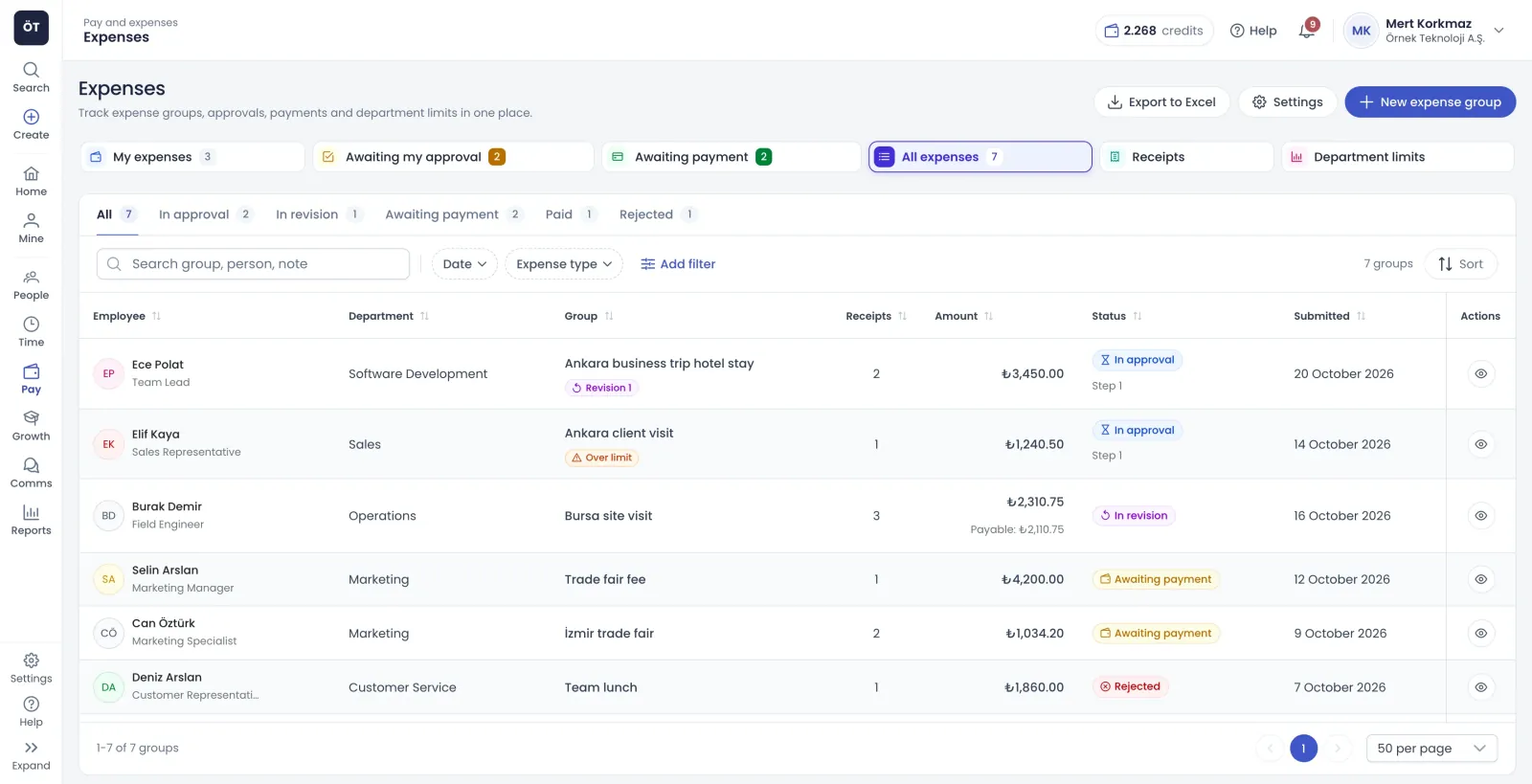
Expenses: expense groups, amounts, limit overruns and approval status
What's inside

What our expense management software covers

Receipt entry, approval, revision, payment and limit tracking all sit on cards of one screen, and everyone sees only the cards their role allows.

Receipts

Upload a receipt and let OCR fill in the details

Employees group costs under an expense group, with each receipt as a line. With receipt and invoice OCR switched on, the uploaded photo fills in receipt date, currency, amount and tax rate, and the employee checks and corrects them. If a receipt cannot be read, fields are filled in by hand and no credit is used for the failed attempt.

  • Snap receipts with the phone camera, iPhone photos supported
  • Amount owed to the employee after company card and advance
  • Receipts in different currencies in one group
  • Summary by type and payment split before sending
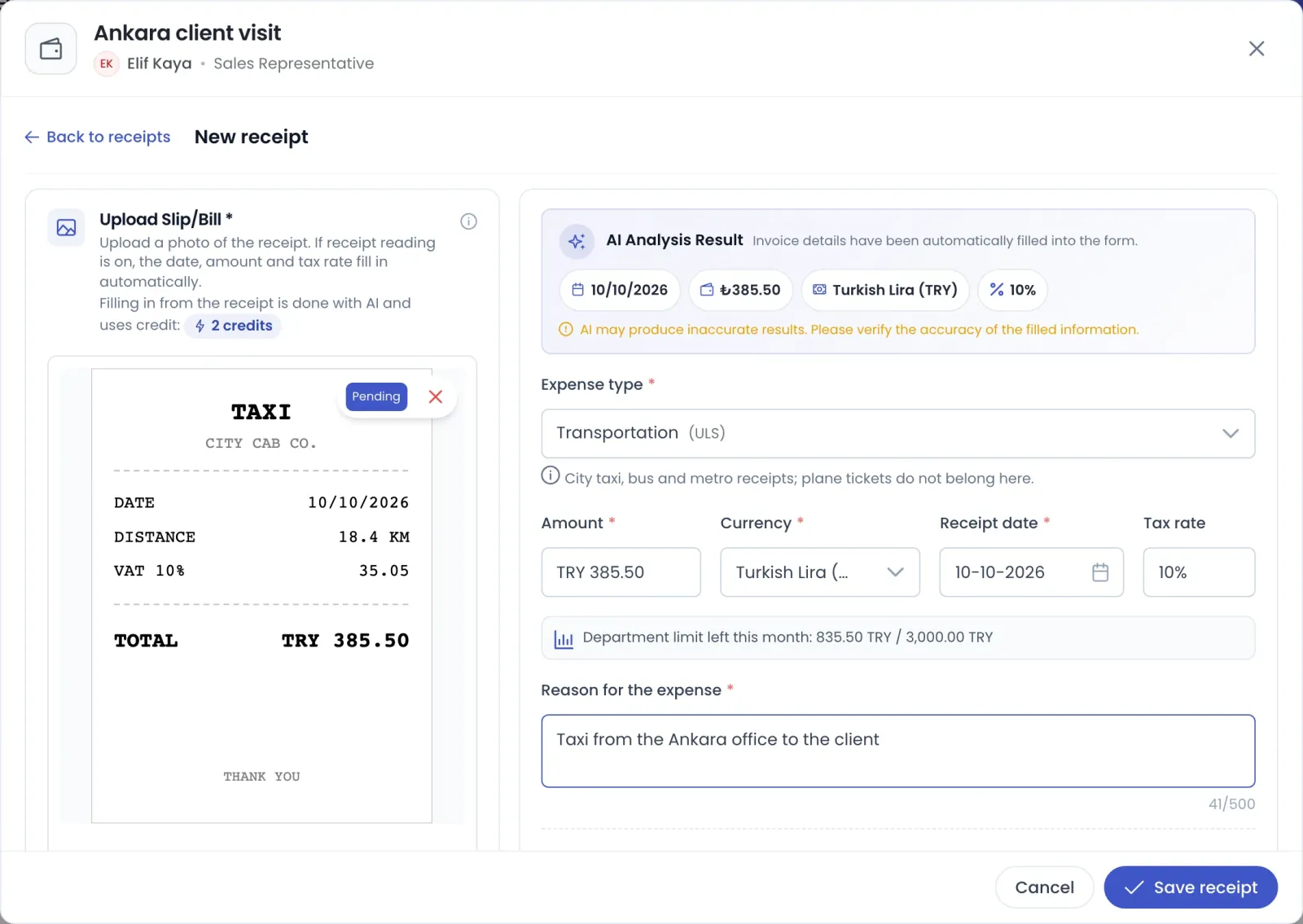
Receipt reading: date, amount and tax rate filled from the uploaded receipt
Approval

Up to three approval levels, then payment approval

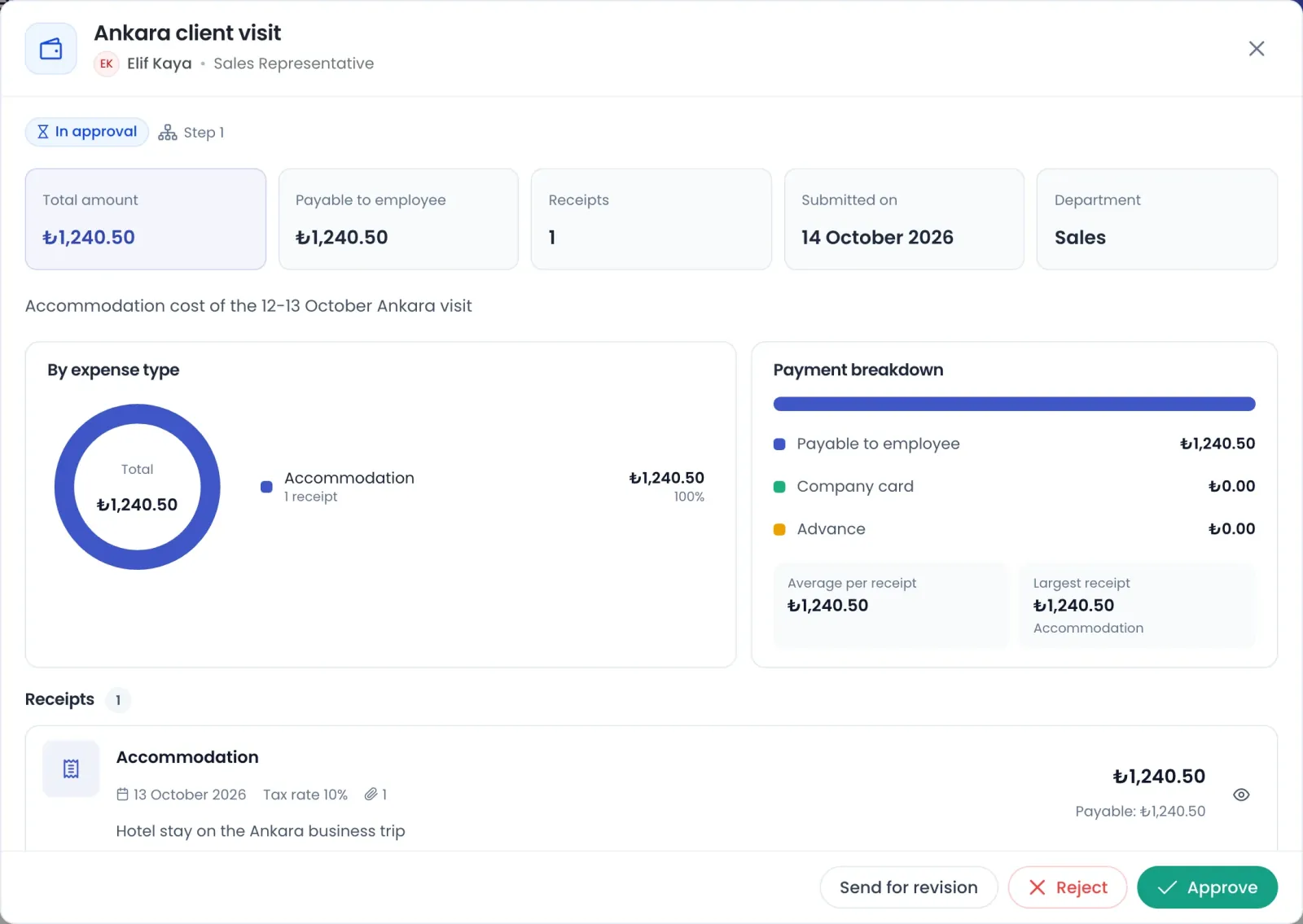
Each department gets an approval flow with up to three levels, where an approver can be a named person or the employee's manager. Approvers approve, reject or send the group back for revision with a note. After that, a payment approver confirms payment. Sending and payment approval are confirmed with a code sent by SMS, producing a time-stamped expense form with a QR code.

  • E-mail and in-app notifications at every level
  • Rejection or revision possible at the payment step too
  • Expense documents ready to attach to accounting entries
  • Export groups matching your filters to Excel
Expense approval: amount summary, payment breakdown, receipts and approval buttons
Limits

Per-receipt and department limits

Each expense type can carry a per-receipt limit that no single receipt may exceed. On top of that, monthly and yearly limits can be set per department. Employees see the remaining department limit while adding receipts. Where a type allows overspending, the employee confirms it and the approver sees the overage in detail; otherwise the group cannot be sent.

  • Usage counted by receipt date for month and year
  • Department limits board with percentage and remaining amount
  • Bars turn amber from 80 percent and red when exceeded
  • Groups sent over the limit carry a badge
Control

Correcting, monitoring and controlling access to expenses

Faulty receipts come back, changes are visible and everyone sees only what they should.

Revision and change tracking

An approver or payment approver sends a group back with a note, and the employee fixes and resends it. In the revised group, new, changed and removed receipts are labelled, and each changed field shows its previous value underneath.

  • Rejected groups can be reopened for revision
  • A badge shows the revision number
  • Change summary shown in the approver's window

Viewing permissions

Accounting and audit teams can be given read-only access to all expenses, including those still in approval, and department heads access to their own department's expenses only. Viewing rights never grant approval or payment rights.

  • All receipts listed in one table
  • Admins only see the branches they cover
  • Draft groups visible to their owner only

Expense types

Review the ready-made types and add your own. Each type has a description, currency, per-receipt limit, overspend permission and department limits. Types you no longer use can be deactivated without deleting them.

  • A type's currency becomes mandatory on its receipts
  • Monthly limits cannot exceed yearly limits
  • Each department appears once per type
How it works

Expense management ready in four steps

  1. Hand out permissions

    Give employees the basic role, payment approvers the response role, and whoever manages expense types the admin role.

  2. Set up approval

    Define approval flows of up to three levels per department; without one, groups go straight to payment approval.

  3. Define types and limits

    Review expense types and set per-receipt limits plus monthly or yearly limits for each department.

  4. Switch on OCR

    Optionally turn on receipt and invoice OCR in company settings, then employees can create their first expense group.

FAQ

Frequently asked questions about Expense management software

Contact us
How does OCR work in expense management software?

With receipt and invoice OCR switched on in company settings, any receipt or invoice photo an employee uploads is analysed automatically. Receipt date, currency, amount and tax rate are filled in and highlighted, and the employee can check and correct them. Each successful analysis uses digital credit; if a receipt cannot be read, no credit is used and the fields are entered by hand.

How many approval levels can expenses have?

Each department can have an approval flow of up to three levels. At each level the approver can be a named person or the employee's manager. Once all levels are complete, the group moves to awaiting payment and a payment approver confirms it. If a department has no approval flow, groups go straight to payment approval.

What happens when a department expense limit is exceeded?

If the expense type allows overspending, the employee can confirm and send the group anyway; it is badged as over the limit and the approver sees the defined limit, prior usage, this group and the overage. If the type does not allow it, the group cannot be sent. The per-receipt limit always applies, so no single receipt can exceed it.

How is a rejected or incorrect expense corrected?

An approver or payment approver can send the group back for revision with a note. The employee corrects and resends it, and the approver sees new, changed and removed receipts labelled, with previous values under changed fields. A rejected group can be reopened for revision by the person who rejected it or an expense admin. Paid groups cannot be reopened.

Are expenses transferred to payroll?

No. Expense groups are not transferred to payroll; payment is completed inside the expense flow with the payment approver's confirmation, and the group becomes paid. Advances are only used to calculate the amount owed to the employee. You can export payment lists to Excel and attach the QR-coded expense form to accounting records.

Can the finance team see all expenses?

Yes. Someone with the view all expenses permission sees every submitted group, including those still in approval, plus all receipts and the department limits board, in read-only mode. Department heads can be limited to their own department's expenses. These viewing rights do not grant approval or payment rights, which are separate responsibilities.

Can receipts be entered in different currencies?

Yes. Besides Turkish lira, receipts can be in US dollars, euros, pounds sterling and several other currencies, and receipts in different currencies can sit in the same group. Totals are shown per currency without conversion. If an expense type has a currency defined, receipts of that type must use the same currency.

Get started with Expense management software

Try it free or explore the product with our team.

Request a demo