Plan your workforce cost month by month with your Teamso data

  • Data arrives from Teamso automatically
  • Payroll calculated for every employee, every month
  • Your real Teamso data never changes
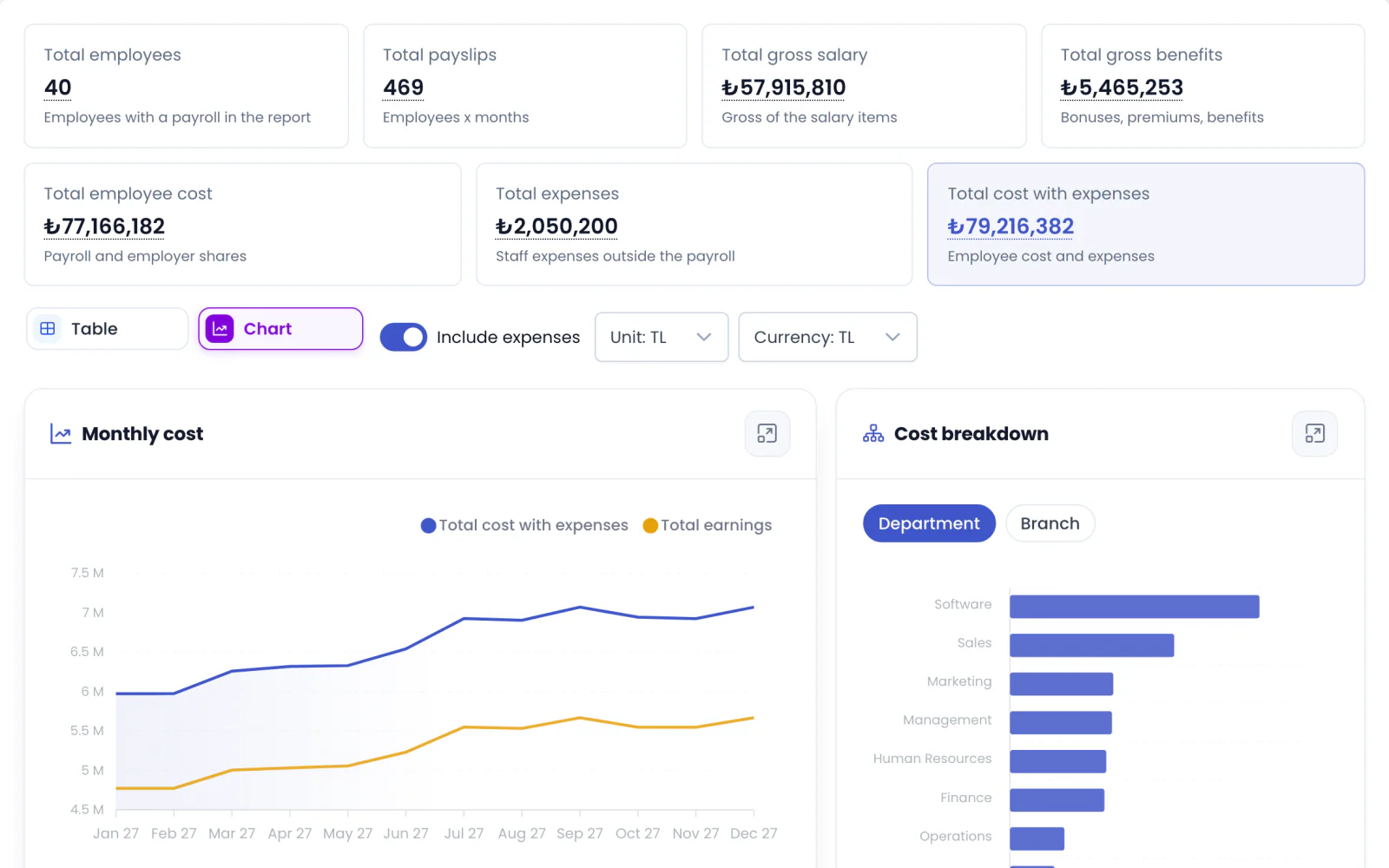
Workforce cost forecast report: employees, payslips, gross salary, benefits, employee cost and expenses, the monthly cost chart and the department breakdown
What's inside

What the Workforce Cost Forecast module includes

A budget plan moves step by step: start, data sources, employee details, timesheet, expenses, increases, parameters, report and actuals. At every step you see the value that came from Teamso and can change it; your changes stay in that plan only. The first time you open the module an app tour walks you through the steps, and the sample plan lets you try everything without touching your own data.

Teamso data

Your budget data arrives from Teamso automatically

As soon as a plan opens, active employees, salaries, benefits, family details, incentives, private pension, R&D, cost centres, planned hires and leavers, approved raises, regular payments, unpaid leave, exchange rates, legislation and carried-over bases enter the budget. You choose which sources go in, and you see the first report without typing anything. Later changes in Teamso are offered for review without overwriting the values you changed.

  • Change any value and go back to the Teamso value in one click
  • Add employees and planned hires that are not in Teamso
  • Past bonuses, overtime and open positions come in as suggestions
  • Start from an Excel file or a headcount breakdown instead of Teamso data
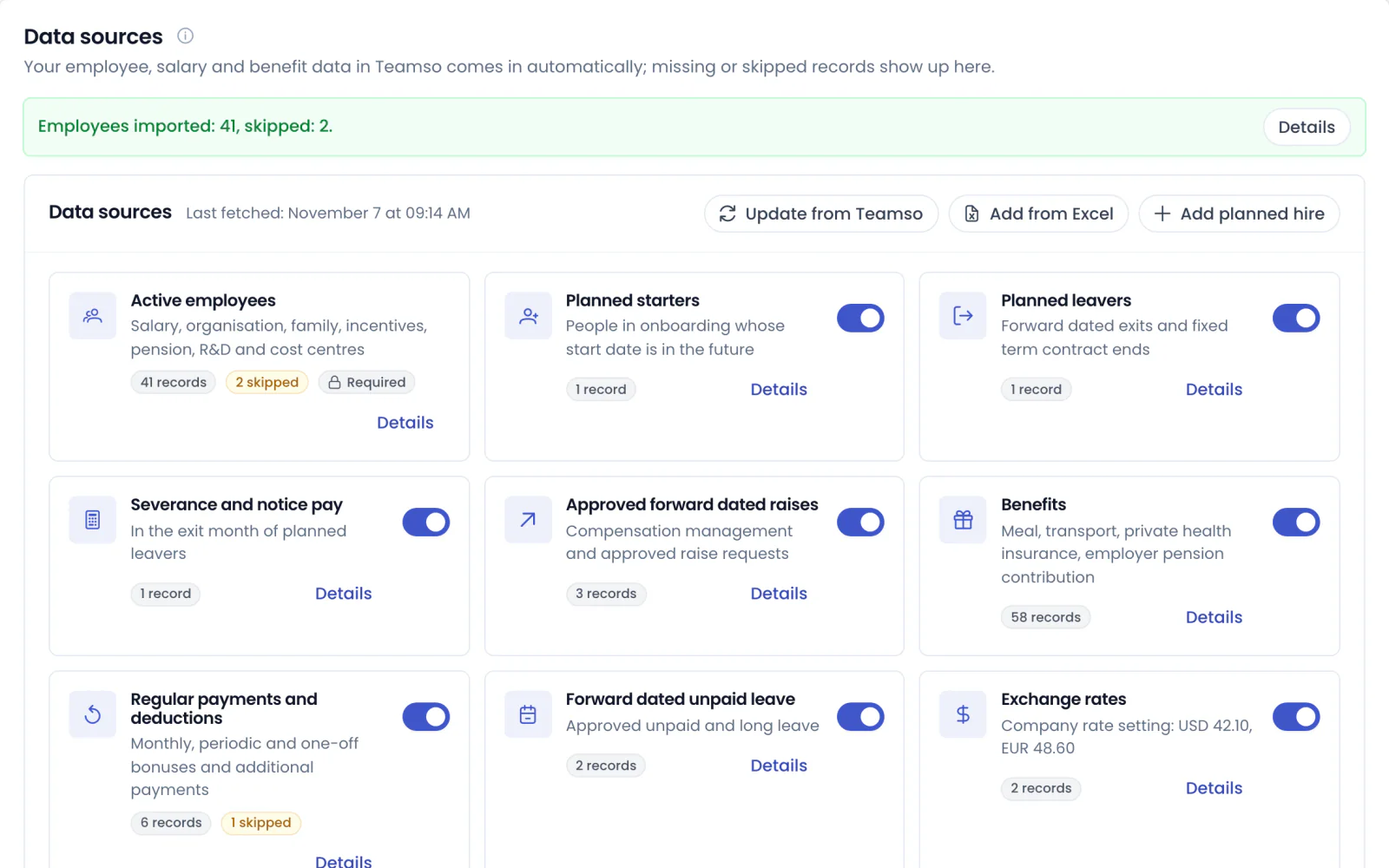
Data sources: employees imported from Teamso, planned starters and leavers, approved raises, benefits and exchange rates
Scenarios

Try raise, bonus and expense scenarios and see the impact right away

In the timesheet step you add bonuses, benefits, deductions and overtime for chosen groups and months; in the expenses step, staff costs outside payroll such as shuttle, canteen and training. In the increases step you define a salary, item or expense increase from a given month: a percentage, an amount to add or a new amount. Each scenario applies to the whole company, a branch, a department, a position or a single employee.

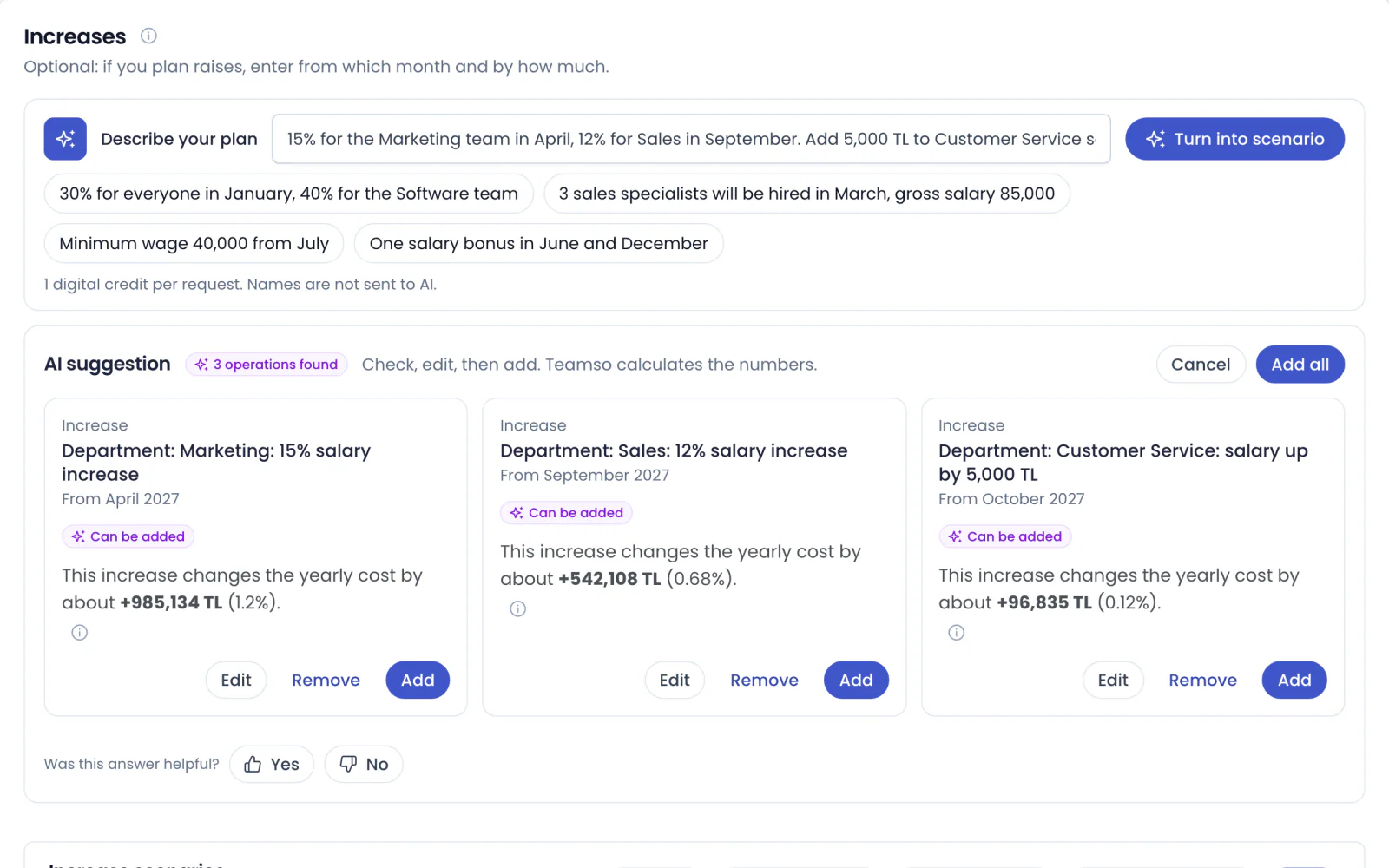
  • Describe your plan in one sentence and the AI assistant turns it into scenarios
  • The approximate yearly impact shows while you type
  • Overlapping scenarios in the same month are flagged clearly when you save
  • Save scenarios to the library and reuse them in other plans
Increases: describe your plan in one sentence and the AI suggestion turns it into raise scenarios, each with its approximate effect on the yearly cost
Legal assumptions

Set next period's legislation yourself, period by period

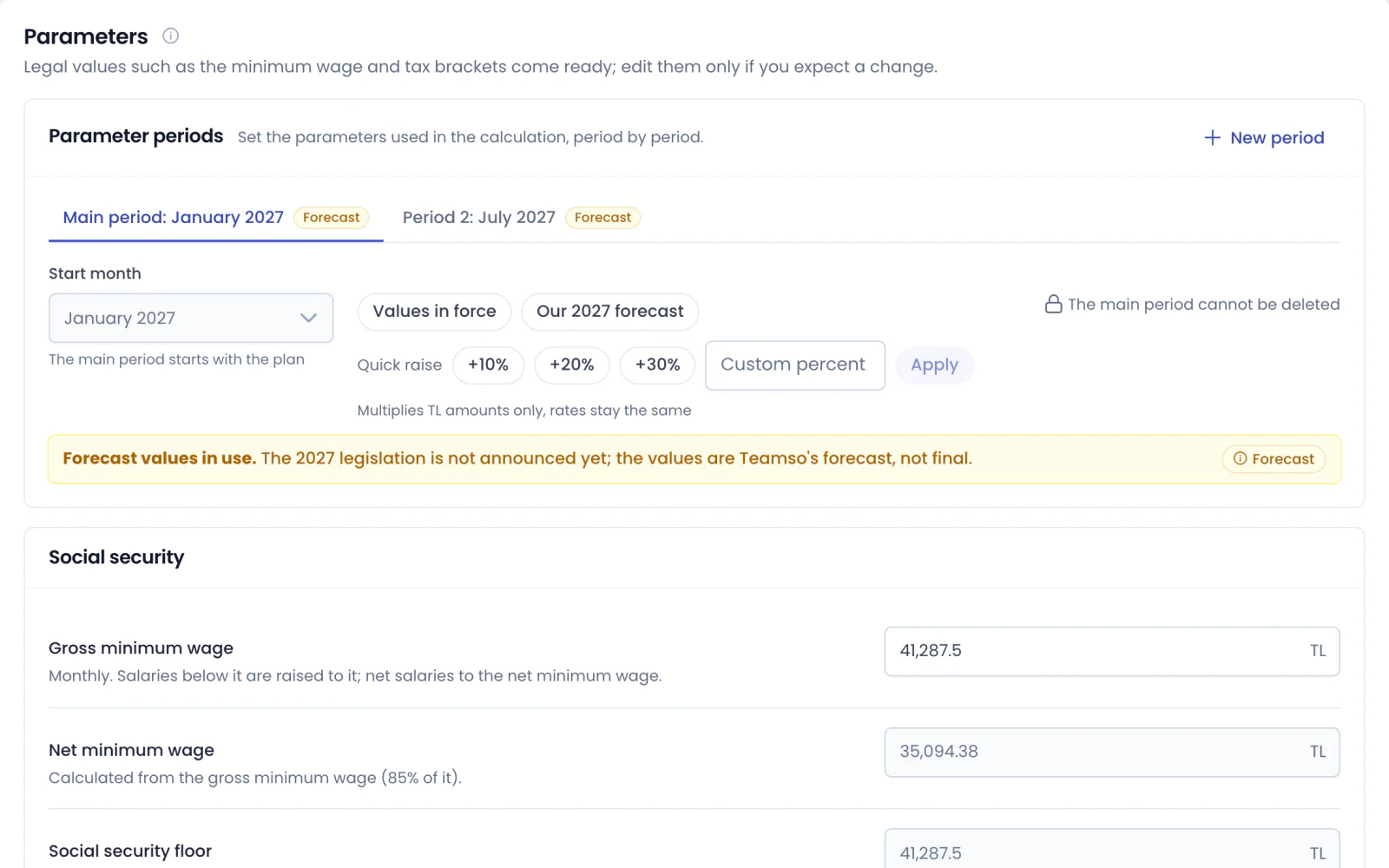
The parameters step holds the minimum wage, the social security floor and ceiling, income tax bands, the travel, meal, child and family allowance exemptions, stamp tax, the Treasury premium reduction, the severance pay ceiling and exchange rate assumptions used in the calculation. For values that change during the year you open a new period, such as a July interim period. Values not yet announced come from the Teamso forecast and are clearly marked as forecasts.

  • Switch between current values and the Teamso forecast in one click
  • Raise amounts by 10%, 20% or 30% with quick increase
  • A short explanation next to every term
Parameters: January and July periods, the Teamso forecast, quick raise and the minimum wage and social security values
Report and comparison

Put scenarios side by side and see what drives the difference

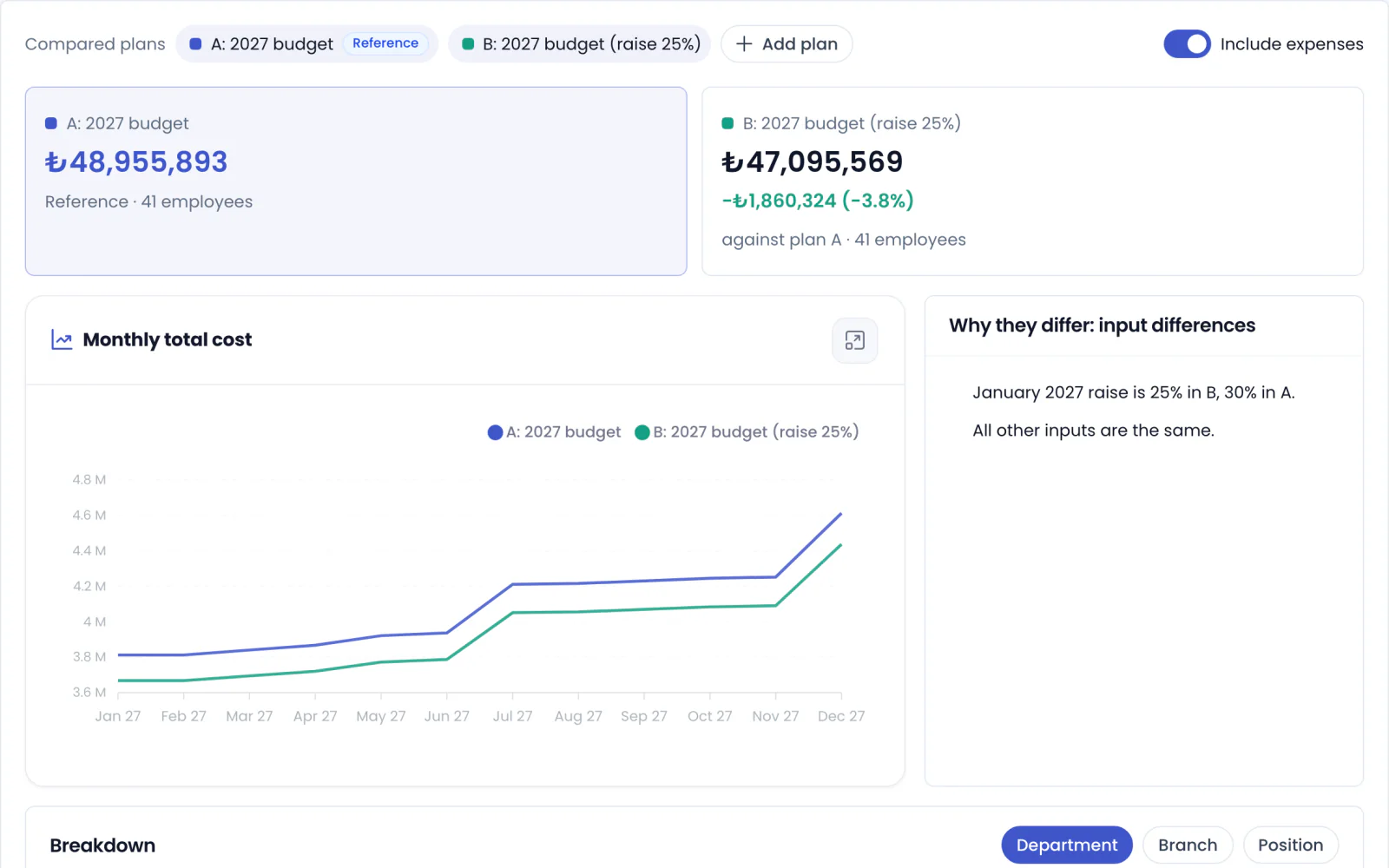
The report shows gross salary, benefits, employer social security and unemployment contributions, taxes and total employee cost for every employee and month, with department and branch breakdowns, charts and a cost bridge on the same screen. On the comparison screen you put two to four plans side by side and see the difference month by month and department by department. The target budget solver works out how much raise or hiring fits within a total you set.

  • Cost bridge: how much each driver adds from today's headcount to the new total
  • Sensitivity: the effect of exchange rates, minimum wage and a general raise on total cost
  • Click a number to see how it was calculated
Scenario comparison: totals of two budgets, their difference, the monthly total cost chart and why they differ
Actuals

Track the budget against closed payrolls

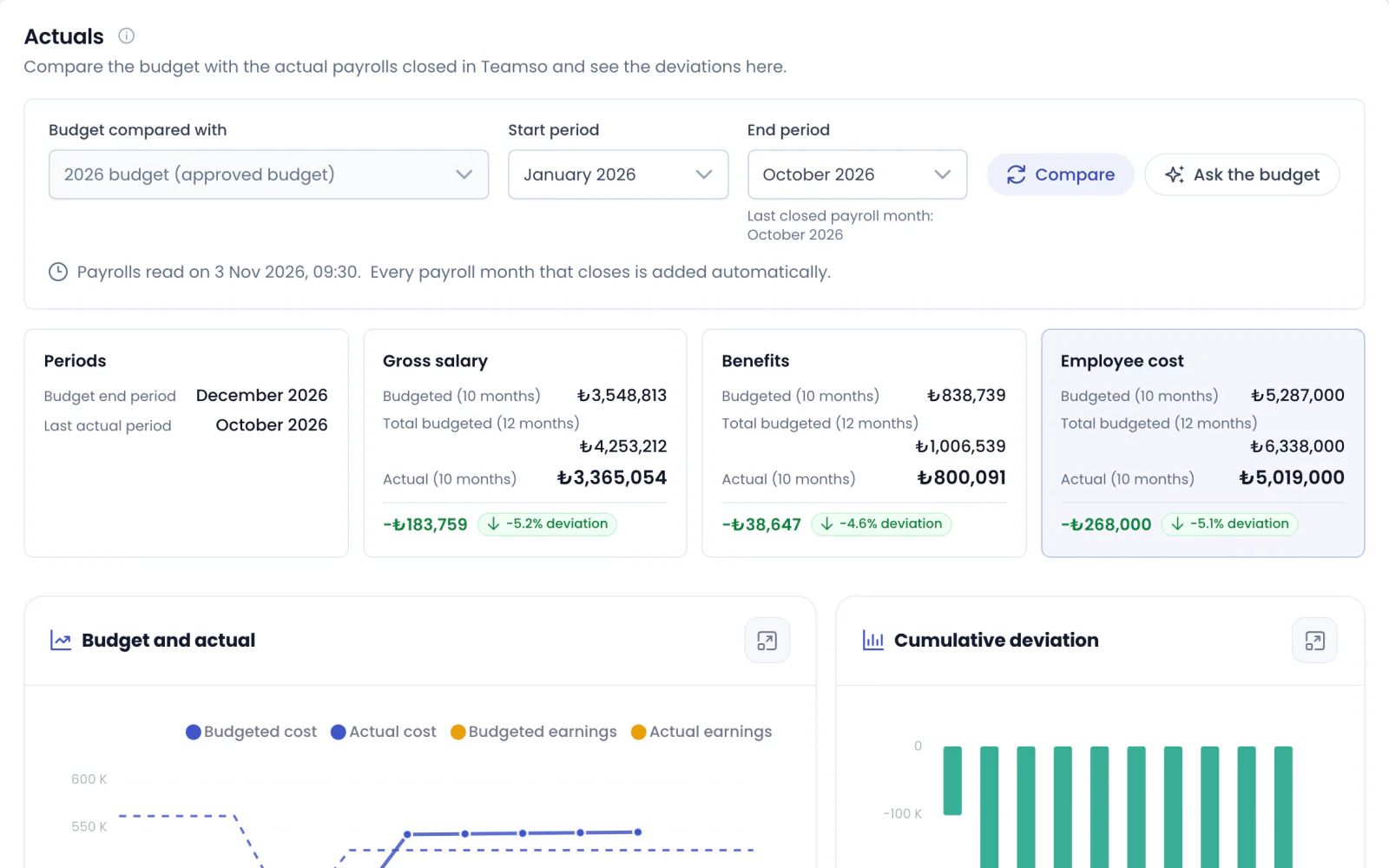
The actuals step compares the budget with the payrolls closed in Teamso: budgeted and actual cost, variance, the year-end forecast, and planned versus actual hires. With keep up to date with actuals on, every closed month is locked and the remaining months are forecast again, so the budget becomes a rolling forecast through the year. When the monthly or year-end variance passes the threshold you set, you get a notification.

  • Budgeted and actual cost per employee
  • Hires outside the budget and planned hires that did not happen are shown separately
  • Year-end forecast plans: closed months from actuals, the remaining months forecast
  • Pay reviews are tracked against the budgeted raise target
Actuals: the approved budget compared with closed payrolls; gross salary, benefits and employee cost
Sharing and AI

From report to decision: share, ask, approve

Exports, the AI assistant, sharing and an approval flow bring budget preparation between HR, finance and managers into one place.

Excel, executive summary, slides and accounting report

Download the report as Excel by employee and month, as an executive summary PDF or as slides in the Teamso template. With Design report you build your own pivot table by choosing rows, columns and values; the accounting report spreads the budget over cost centres and the chart of accounts.

  • Per-employee Excel only for people who may see salaries
  • Email summary weekly, monthly or whenever a payroll closes
  • Reach your plans' summary and breakdown from your AI assistant with Teamso MCP

Ask the budget and read the highlights

With Ask the budget you ask questions about the report, for example which department's cost grows the most; most questions are answered in a few seconds and every number in the answer comes from the report. Highlights point out what needs attention, such as an incentive ending, employees moving up to the minimum wage and currency risk, in short notes; the executive summary text is also written with AI.

  • Teamso calculates the numbers, not the model
  • No names or national ID numbers are sent to AI
  • AI features use digital credits

Sharing, contribution round and approval

Share a plan with colleagues with edit or view access, and leave comments on rows. A contribution round collects hiring, raise and bonus needs from department managers for their teams; managers can enter them on their phone too, and you add them to the budget or reject them. Send the finished budget for approval; an approved budget is locked and changes go into a revision.

  • Version history: view any version or restore it
  • Open hiring requests in the ATS from the approved budget
  • Ready-made templates and the scenario library for a quick start

Your Teamso data stays safe, permissions stay clear

Nothing you do in a budget changes employee, salary or payroll data in Teamso. Users import only employees of the branches they are responsible for, and salary amounts are visible only with salary view permission. In line with data protection law, no employee names, national ID numbers or registry numbers are sent to the calculation engine or to AI.

  • Admin, manager and viewer permissions
  • Every change is written to the audit log
  • Interface in Turkish, English, Arabic and Russian
How it works

Get started with Workforce Cost Forecast in four steps

  1. Open a plan

    Choose the plan's name and period or start from a ready-made template. Your Teamso data arrives automatically and a first report is prepared. To try it first, open the sample plan.

  2. Add scenarios

    Add raise, hiring, bonus and expense scenarios and check the legal assumptions for the coming period.

  3. Calculate and compare

    Create the report, put scenarios side by side, then share the result or send it for approval.

  4. Track actuals

    As payrolls close, compare the budget with actuals and spot variances early.

FAQ

Frequently asked questions about Workforce Cost Forecast

Contact us
What is workforce cost forecasting and how does it work?

Workforce cost forecasting is a budget plan that calculates next period's staff cost employee by employee and month by month. When you open a plan, your employee, salary and benefit data comes from Teamso; you add raise, hiring, bonus and expense scenarios and legal assumptions. Payroll is calculated for every employee and month, and the report shows gross salary, employer contributions, taxes and total cost.

Which data comes from Teamso?

Active employees, salaries, benefits, family details, incentives, private pension, R&D, cost centres, planned hires and leavers, approved raises, regular payments, unpaid leave, exchange rates, legal values and carried-over bases arrive automatically. Past bonuses, overtime, expenses, open positions and raises awaiting approval come in as suggestions and only enter the budget when you add them.

Do changes in the budget change my data in Teamso?

No. Every value in a budget plan affects only that plan; employee, salary and payroll data in Teamso does not change. Values you change are marked and you can go back to the Teamso value in one click. Later changes in Teamso are offered for review without overwriting your own changes.

How is next year calculated when the minimum wage and tax bands are not announced yet?

In the parameters step you set the minimum wage, the social security floor and ceiling, income tax bands, exemptions and exchange rate assumptions period by period. Values not yet announced come from the Teamso forecast and are marked as forecasts; you can use the current values or type your own assumption instead. For values that change during the year you can open a new period, such as July.

Can I build the budget from Excel or from headcount?

Yes. Instead of Teamso data you can import employees with the Excel template; invalid values are listed row by row and no default is filled in silently. In a headcount plan you build the budget with a head count and a representative salary for each group of a breakdown such as branch, department or position.

Can I try it without entering my own data?

Yes. Try the sample plan opens a budget prepared with the data of a sample company; you explore the report, scenarios and comparison, and copy it to change it like your own plan. The first time you open the module an app tour introduces the steps one by one, and you can restart the tour from the More menu at any time.

How is Workforce Cost Forecast priced?

Workforce Cost Forecast is a separate package; to add it to your company, request a demo and our team will get in touch. Budget calculations use no digital credits and have no daily limit; a plan that has not changed is not calculated again and the last result is shown. AI features such as the scenario assistant, Ask the budget and the executive summary use your company's digital credits.

Is employee data sent to AI?

No data that identifies a person is sent. AI features never send employee names, national ID numbers or registry numbers to the model, and Teamso, not the model, calculates the numbers. Ask the budget answers only with data you are allowed to see. In the data sent for the payroll calculation, employees appear only as a numeric row number as well.

Get started with Workforce Cost Forecast

Workforce Cost Forecast is a separate package. Request a demo: our team shows you the module with sample data and gets in touch to add the package to your company.