
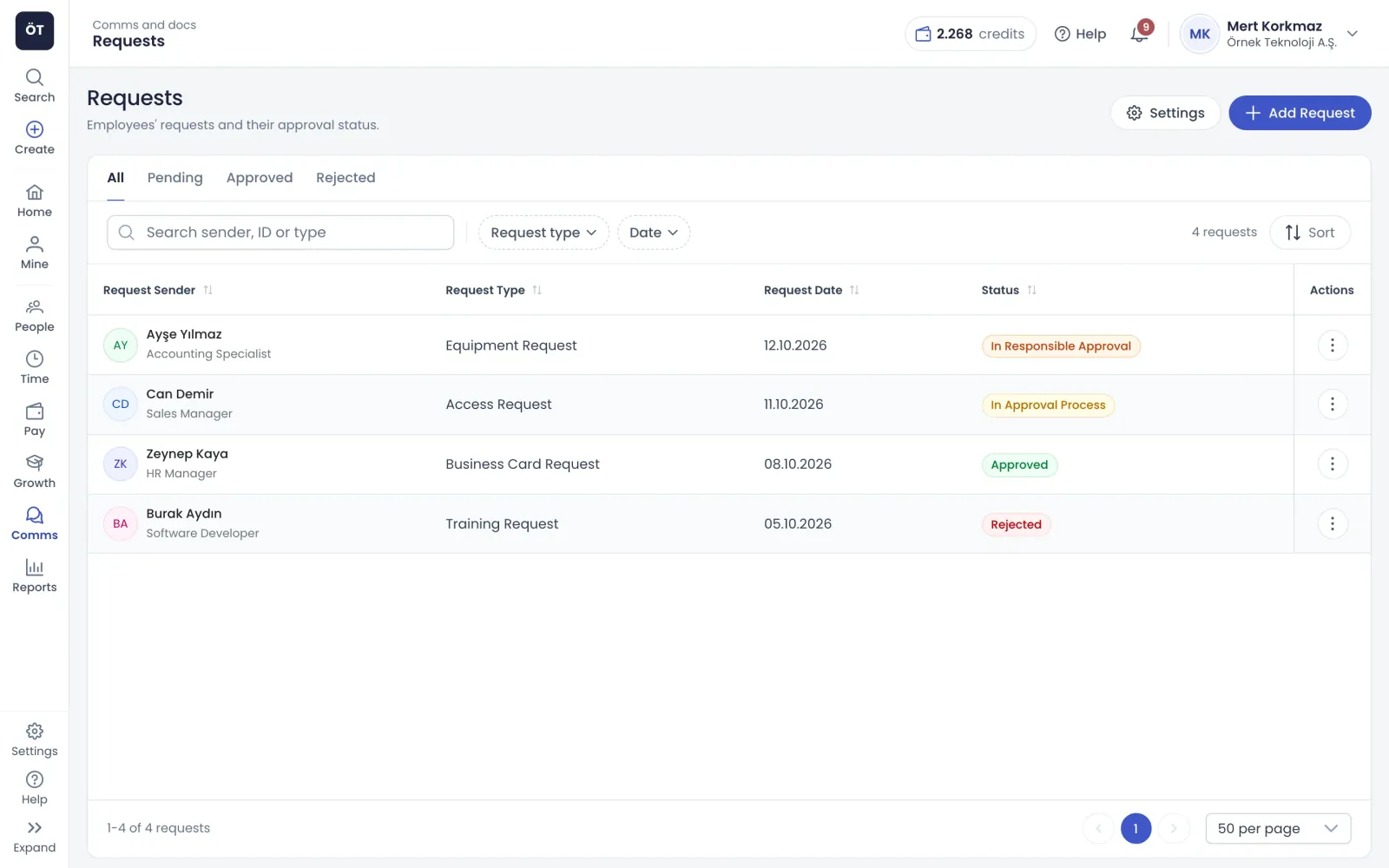
The module has three parts: request types, approval chains and replies. They work together on the same screen.
Request types
You decide the request types and who owns them
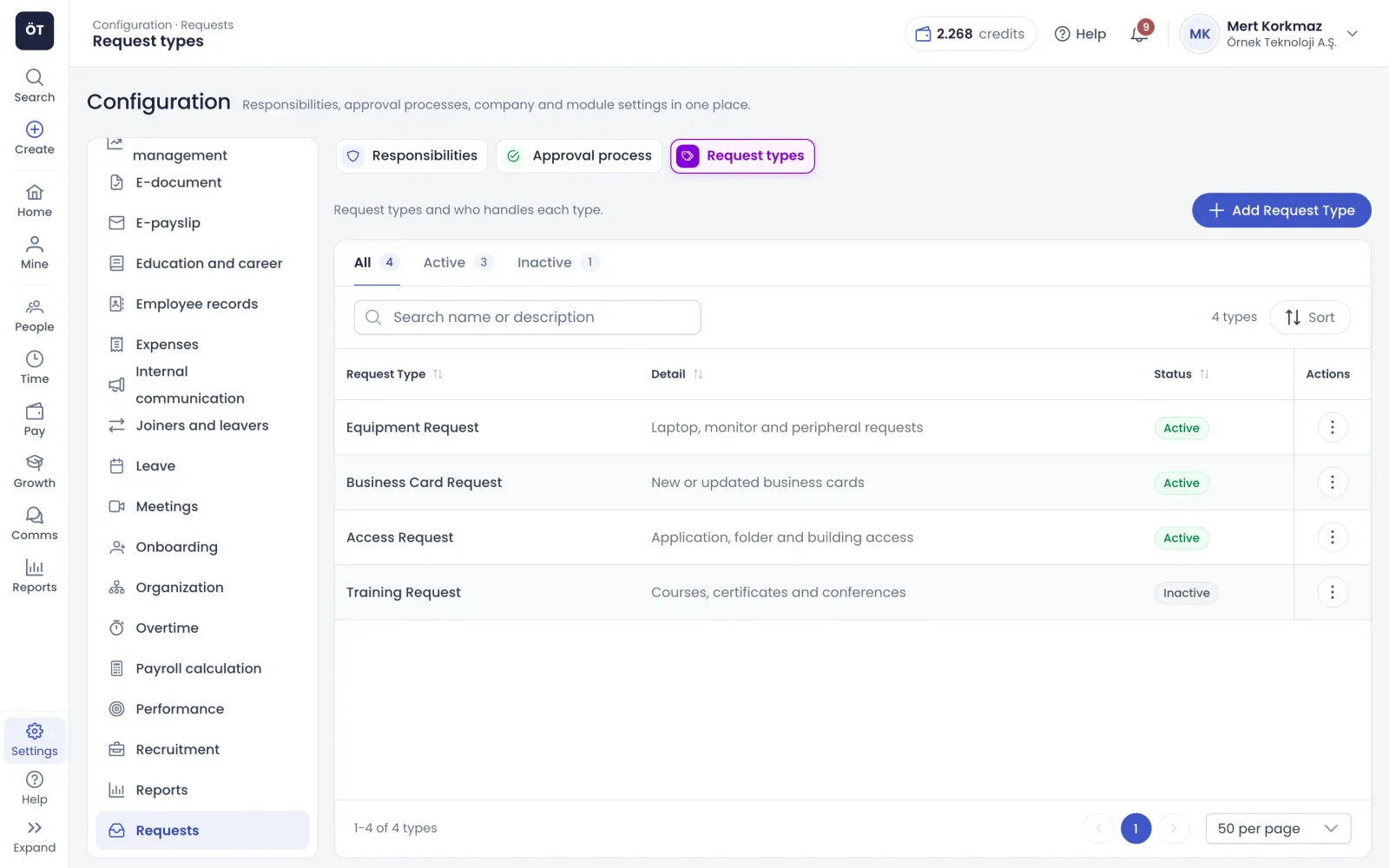
Create a request type for every category you need, such as equipment, business cards or access rights. Each type has at least one owner who answers requests once approvals are done. Visible types appear on the employee's request form, and switching a type to passive closes it to new requests while keeping past ones intact.
Duplicate type names are blocked, ignoring case and accented letters
Types with existing requests cannot be deleted, only made passive
Owner changes apply to new requests as soon as you save
app.teamso.com
Approvals
Approval chains set per request type
Build an approval chain of up to three levels for each request type. At each level, either one of the named employees approves or the requester's direct manager does. The manager comes from the employee's position record in employee records. If no chain is defined, the request goes straight to the type's owners.
The manager level is skipped when no manager is set
A level passes automatically if the requester is its approver
Pending requests follow the new chain when you change it
If an approver leaves, Change Approver reroutes waiting requests
Approval chains set per request typeThe manager level is skipped when no manager is setA level passes automatically if the requester is its approverPending requests follow the new chain when you change it
Tracking
Status tracking, notifications and replies
Every request is In Approval, Awaiting Owner, Approved or Rejected, and hovering over the label shows which approval step it is waiting on. Whoever is next gets an email and an in-app notification, and the requester is updated at each step. The owner writes a reply and approves or rejects, and the requester reads it in the request details.
Rejection reasons are visible to the requester
Pending requests open from the home page task box
Managers can receive a weekly approval reminder email
Status tracking, notifications and repliesRejection reasons are visible to the requesterPending requests open from the home page task boxManagers can receive a weekly approval reminder email
Roles
Who does what in the request flow
Each role sees only the requests that concern them and works from the same screen.
Employee
Opens a request from My Requests or the Create menu, picks the type, writes a message of up to 500 characters and can add a link plus a PDF, JPG or PNG file. Requests are grouped by status in tabs so nothing goes missing.
If only one type is active, the form selects it
Type and date filters make old requests easy to find
An email and notification arrive when there is a decision
Approver and manager
Opens requests that have reached their step from the requests screen, My Approvals or the home page task box. Reviews the message, link and attachment, then approves or rejects with a reason. Approval moves the request to the next level.
Reply only appears when it is their turn
Someone listed on two levels approves at each level
Approvals work from the mobile app as well
Request owner
The person named as owner of a request type gives the final answer once the approval chain is complete. They write a reply and approve or reject. Being an owner grants no extra access: they see only requests of the types they own.
Notified by email and in app when approvals finish
The reply is saved to the requester's request details
Owners cannot answer their own requests
Request administrator
Manages request types, owners and approval chains from the configuration menu. With the right permissions they see every request from their branches in one list and can search, filter and delete when needed.
Permissions are granted one by one per menu
The list respects branch-level access
Approval chains are listed per request type
How it works
How the request flow works in four steps
Define request types
Create the request categories your company uses and choose the owners who will answer each of them.
Set up approvals
Add up to three approval levels per type if needed, choosing named people or the direct manager at each level.
Employees submit
The employee picks a type and adds a message and any file. The request reaches approvers and owners in order.
Owners reply
When approvals are done, the owner writes a reply and closes the request, and the requester is notified.
Connected modules
Modules that work alongside requests
Requests rely on the same employee data and approval setup as the rest of Teamso.
What kinds of requests can employee request management handle?
Any request your employees send in writing can have its own type: equipment, business cards, access rights, facilities or anything addressed to another team. Each type has its own owners and, if you want, its own approval chain. Leave, expenses and overtime have dedicated modules in Teamso, so they are handled there rather than as generic requests.
How many approval levels can a request have?
Up to three levels per request type. At each level either one of several named employees approves (one approval is enough) or the requester's direct manager does. Levels open one after another. If you define no chain at all, the request skips approval and goes straight to the owners of that request type.
How do employees track where their request is?
My Requests shows each request's status: In Approval, Awaiting Owner, Approved or Rejected. Hovering over In Approval shows the current step. Employees get an email and an in-app notification when the request moves forward and when it is decided, and the owner's reply appears in the request details.
Can employees attach files to a request?
Yes. Along with the message, an employee can add a link and one PDF, JPG, JPEG or PNG file of up to 20 MB. Approvers and the owner open the attachment from the reply window. Request messages can be up to 500 characters long, which keeps them focused and easy to review.
What if a manager forgets to approve a request?
Approvers get an email and an in-app notification as soon as it is their turn, and the request also waits in the home page task box and on My Approvals. If approval reminders are switched on, managers with pending items receive a weekly email showing how many are waiting. You choose the day and time in company settings.
Can requests be submitted and approved on mobile?
Yes. The Teamso mobile app opens the same request screens, so employees can submit requests and approvers or owners can approve and reply from their phone. Notifications reach the phone too, which means managers away from their desk do not hold up the approval chain.
Who can see all requests in the company?
On the requests screen, everyone sees their own requests, those waiting on them and those of the types they own. Seeing every request requires the reply permission together with a request management permission, and the list is limited to the branches the person is responsible for. Being named an owner does not grant that access.