
HR reporting that builds the report you actually need

  • Four-step report builder
  • Saved reports refresh on every run
  • Salary data only for authorised users
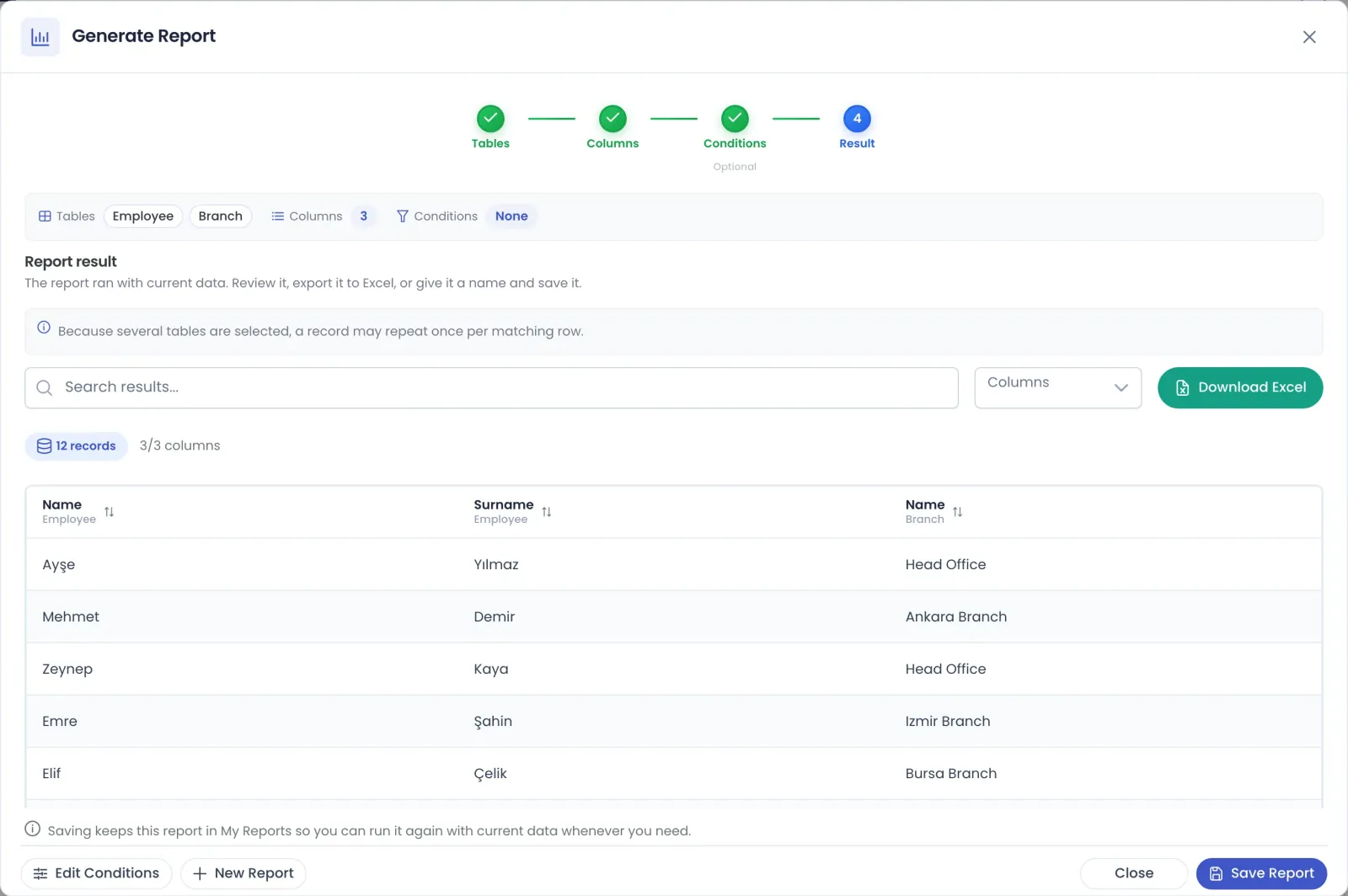
Report builder: results from the selected tables and export to Excel
What's inside

What the HR reporting module includes

Reporting has three layers: custom reports you build, ready-made module reports and Excel exports of lists.

Report builder

Custom reports from tables, columns and conditions

The report builder has four steps: tables, columns, optional conditions and result. Once you choose a table such as employees, branches, leave, expenses, assets or payroll, only related tables stay available, so you never create meaningless joins. Columns are added in the order you pick them, and conditions use operators such as equals, contains, between or empty.

  • Combine conditions so all must match or any may match
  • A summary box restates your conditions in plain language
  • Search, hide columns and sort the result
  • Encrypted fields only support exact matches in conditions
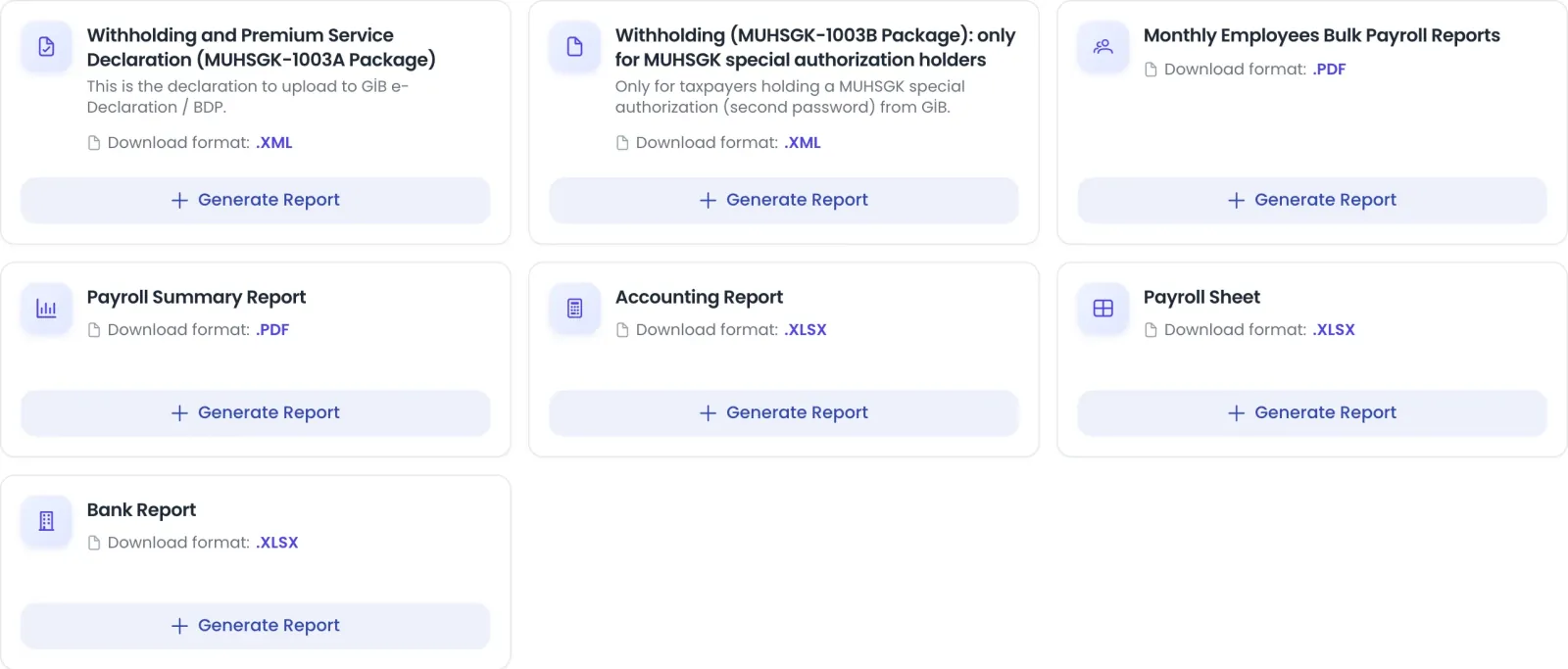
Payroll reports: withholding declaration, summary, accounting, payroll sheet and bank report
My Reports

Saved reports, sharing and Excel

Save a report under a descriptive name. Saved reports are shared company-wide: anyone who can open My Reports sees them and runs them with current data, and a creator column shows who built each one. Excel exports contain only the visible columns and rows that match your search, in the order shown. You can send the report link to an authorised colleague.

  • Only the creator or module owner can delete a report
  • Dates export as dates and coded fields as text
  • Saved reports are not edited, you build a new one
Module reports

Ready-made reports from payroll, leave and more

Some reports follow a module's own rules and have their own screens. The payroll software produces payroll summaries, accounting, payroll sheet, bank reports and the MUHSGK 1003B package for closed periods. Leave has an employee leave report. The e-document archive, badge management and competency reviews have their own report screens too.

  • Payroll reports are queued and downloaded when ready
  • Build a custom report when a ready one falls short
  • Module reports open with that module's permissions
Access and security

Reporting access is granted deliberately

Reports run across all company data, so each permission is granted separately.

Three reporting roles

The module owner builds and saves reports and can delete any report. A report author builds new reports and deletes only their own. A report reader runs saved reports and exports them to Excel but cannot build new ones.

  • Permissions are granted from the configuration menu
  • Only authorised users see the create button
  • Readers can use saved reports safely

Salary and payroll data

Salary, payroll and payroll sheet tables are listed only for users with salary viewing or payroll admin permission. Saved reports that read them open only for those users too; anyone else sees a message naming the permission required.

  • Salary tables are hidden from unauthorised users
  • A separate column shows whether pay is net or gross
  • Timestamps are shown in Turkey time

Excel from list screens

Screens such as the employee list, timesheets, assets, vehicles, pre-boarding, survey answers and hiring lists prepare Excel files that match your current filters. Large lists are prepared in the background and downloaded from My Lists when ready.

  • Files match the filters and search at request time
  • Preparation continues if you move to another page
  • Failed lists can be retried with the same filters
How it works

Your first report in four steps

  1. Choose tables

    Pick the data you want to report on, for example employees and branches; related tables stay selectable.

  2. Tick columns

    Select the columns you want from each table, in the order you want them to appear.

  3. Add conditions

    Optionally narrow the report, for example branch name equals Istanbul, and choose how conditions combine.

  4. Save and share

    Review the result, export to Excel and save the report under a name so colleagues can run it too.

FAQ

Frequently asked questions about HR reporting

Contact us
What reports can HR reporting software build?

You can build reports from Teamso company data as you need them: employees, branches, leave, expenses, assets, payroll tables and more can be selected. For example, list leave records for employees in one branch with exactly the columns you choose. When you pick several tables, the data is combined in one report.

Do saved reports show current data?

Yes. A saved report stores your tables, columns and conditions, not the data. It reruns with current data every time you open it, so what you see is always up to date. If the table or column structure has changed, the report says so and asks you to rebuild it.

Can I share reports with colleagues?

Saved reports are shared across the company, so anyone who can open My Reports sees and runs them. Open a report and send the browser link to an authorised colleague. To share with someone without access, download the report as Excel and share the file instead.

Is salary data visible to everyone in reports?

No. Salary, payroll and payroll sheet tables are listed only for users with salary viewing or payroll admin permission, and saved reports that read them open only for those users. Reports are not limited by branch, so give report building rights only to people who should see company-wide data.

Where do I find payroll reports?

Payroll summaries, accounting reports, payroll sheets, bank reports and the MUHSGK 1003B package are on the payroll reports screen under the reports menu. They are produced for closed periods only, queued and downloaded when ready, and they require payroll admin permission.

Can I export report results to Excel?

Yes. Download Excel saves the file under the report's name. Only the visible columns and rows matching your search are included, in the order shown on screen. Yes or no values and coded fields such as leave status are written as readable text, and dates as dates.

Can an AI assistant query HR data?

With Teamso MCP, an assistant such as Claude or Cursor can read Teamso data using your personal access token and only your permissions, for example to list this month's expenses. The assistant cannot do anything you cannot do on screen and never adds permissions. See the Teamso MCP server page for setup.

Get started with HR reporting

Try it free or explore the product with our team.

Request a demo