
E-document signing: send, approve by SMS and keep a time stamp

  • TÜBİTAK time-stamped approval copy
  • Document approval by SMS code
  • Automatic reminders and overdue reports
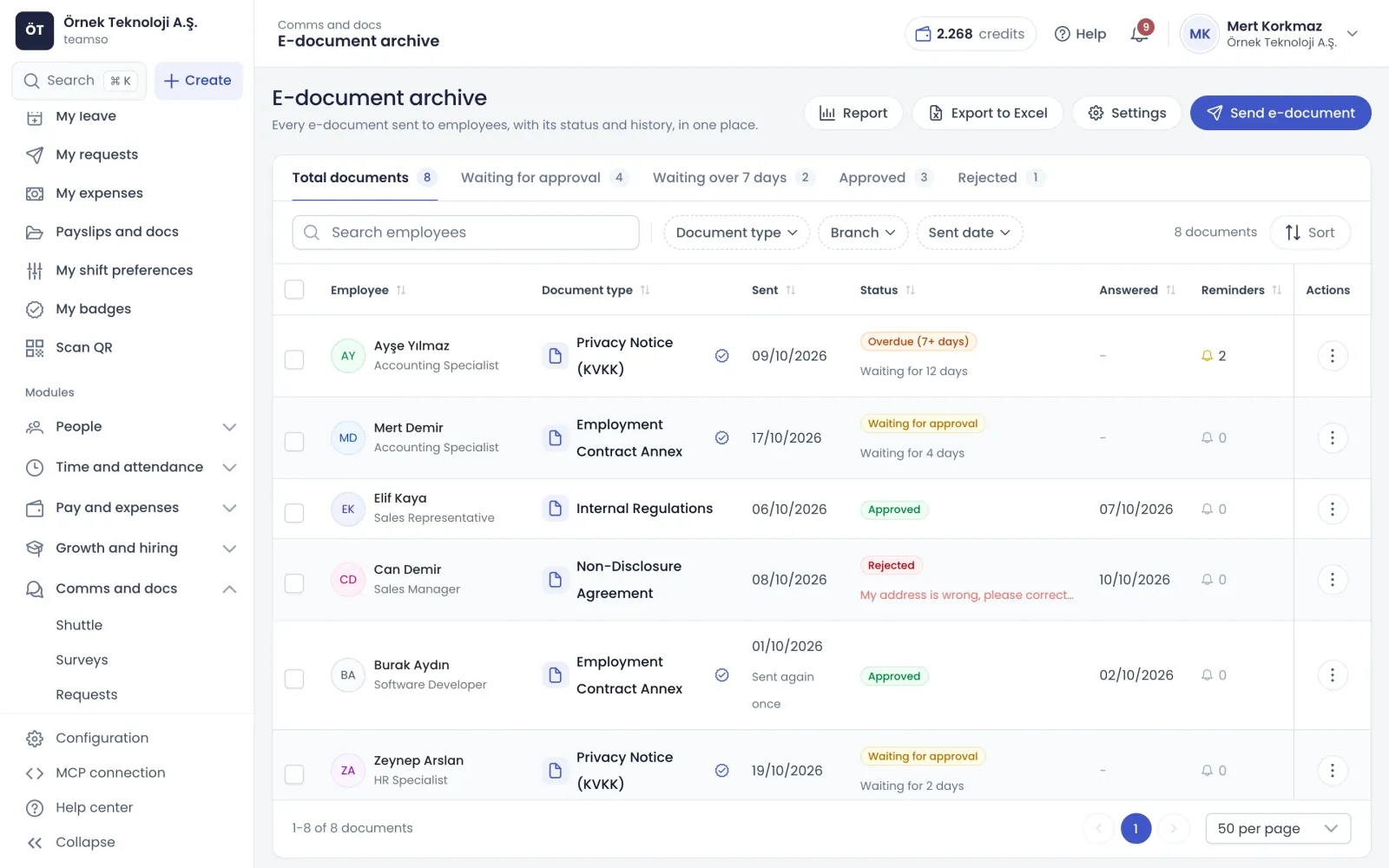
E-document archive: sent documents, approval status and reminders
What's inside

What the e-document module includes

E-document covers three jobs: preparing documents, sending them to the right people and tracking who has approved and who has not.

Document types

PDF templates, auto-fill and document groups

Upload each document you send as a PDF e-document type. If the PDF has matching form fields, full name, national ID number, home address and phone number are filled in for every employee and locked. Types without a PDF ask the employee to upload their own file, which suits documents you collect from employees such as diplomas.

  • Time stamping is switched on or off per document type
  • Documents sent together form groups, optionally per branch
  • Unsent types can be deleted, sent ones are archived
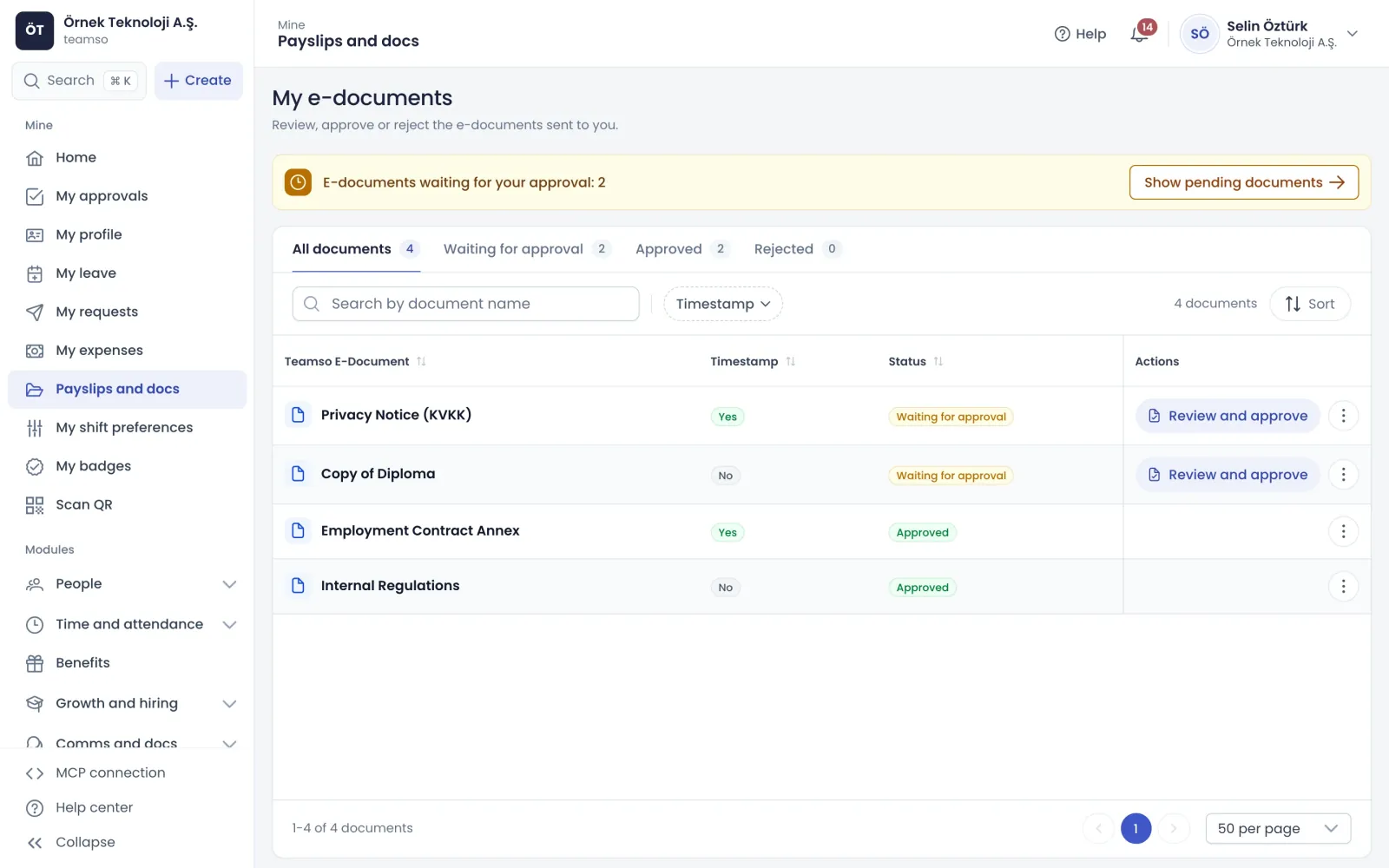
Employee e-documents: documents waiting for approval and approved ones
Sending and approval

Send to the right people, approve with read and understood

Send documents by branch, department, position or person, or to every employee you are responsible for in one go. Before sending, the window shows how many people and records will be created. Employees open the document from My E-Documents or the home page task box and approve with read and understood. If you allow it, they can reject with a reason.

  • Time-stamped documents require an SMS code to approve
  • The approved time-stamped PDF downloads from the archive
  • Sending also opens from the home page quick add menu
Archive and tracking

E-document archive, reminders and overdue reports

The archive shows every sent document by status: awaiting approval, waiting more than seven days, approved and rejected. Send reminders one by one or in bulk, and resend rejected documents with a note. Each document's history lists every event with date and person, which also gives you an audit trail for document approval and policies.

  • Automatic reminder timing and maximum count are configurable
  • An overdue documents report is emailed every Monday
  • The report shows approval rate and average response time
  • Approved documents cannot be deleted, as they prove consent
Use cases

Where e-documents are used

The same document setup serves several HR processes.

Documents for current employees

Send a new internal regulation, an updated privacy notice or a contract annex to the whole company or selected units. The archive shows who approved, who is waiting and who rejected, filtered by branch and document type.

  • Each row shows sent and response dates
  • Rejected documents show the employee's reason
  • The filtered list exports to Excel

Hiring documents

E-document groups define what new hires must provide during pre-boarding. Candidates confirm or upload documents in the form before they start and approve time-stamped documents with an SMS code. Documents can be split into pages to guide them step by step.

  • Different branches can use different document sets
  • Approved documents move to the registry on transfer
  • Candidates can be allowed to reject a document

E-documents in the employee registry

Documents sent to an employee are listed in the e-documents section of their registry. Authorised HR users see which documents someone received and approved from the profile card or the registry screen.

  • The section opens for e-document permission holders
  • Records are created by the sending process
  • Documents cannot be resent to passive employees
How it works

Get started with e-documents in four steps

  1. Upload the document

    Add the PDF as an e-document type, choose whether it needs a time stamp and group documents if useful.

  2. Pick recipients

    Select branch, department, position or person, add a message if you like and decide whether rejection is allowed.

  3. Employees approve

    Employees open the document on web or mobile and approve it, entering an SMS code for time-stamped documents.

  4. Track from the archive

    Remind those waiting, resend rejected documents and pull the report or Excel list from the archive.

FAQ

Frequently asked questions about E-document

Contact us
What documents can e-document signing handle?

Any document you want employees to read and approve: contract annexes, privacy notices, internal regulations, confidentiality undertakings and so on. You upload it as a PDF. For types without a PDF, the employee uploads their own file, so documents you collect from staff, such as diplomas or certificates, fit the same process.

How does SMS approval work?

When an employee approves a time-stamped document, a six-digit SMS code is sent to their registered phone. Entering the code completes the approval and creates a time-stamped copy. Documents without time stamping only need read and understood. Time-stamped approval requires a registered phone number and enough digital credit in the company account.

Why does a time stamp matter?

A time stamp ties the approval to a specific date, time and document content in a way that cannot be altered afterwards. Teamso keeps a TÜBİTAK time-stamped copy of the approved document, and authorised users can download that PDF from the archive. We recommend checking the content and use of each document with your own legal adviser.

How do I follow up on employees who have not approved?

The archive counts documents awaiting approval and those waiting more than seven days on separate tabs. Send a reminder with a note to the ones you select. Automatic reminders start five days after sending by default, repeat every seven days and stop after three, all adjustable in follow-up settings. A weekly overdue report is also available by email.

Can employees reject an e-document?

Only if you allow it. With the rejection option ticked when sending, employees can reject with a reason; without it, they can only approve. Rejected documents appear in the archive with the reason, and after fixing the issue you resend with a note so the document goes back to awaiting approval.

Can documents be approved on mobile?

Yes. The Teamso mobile app opens the same e-document screens, so employees read and approve documents on their phone and enter the SMS code for time-stamped ones. Pending documents also appear in the home page task box, which helps field and shift teams who rarely use a computer.

Can I report on e-document approvals?

Yes. The archive's report window shows sent, approved, pending and rejected counts, approval rate and average response time by document type and branch, and exports to Excel. The document list itself also downloads as Excel with employee, branch, document type, status and dates.

Get started with E-document

Try it free or explore the product with our team.

Request a demo