
E-payslip delivery with SMS approval and response tracking

  • SMS-code employee approval
  • TÜBİTAK time stamp and QR code
  • Bulk PDF split per employee
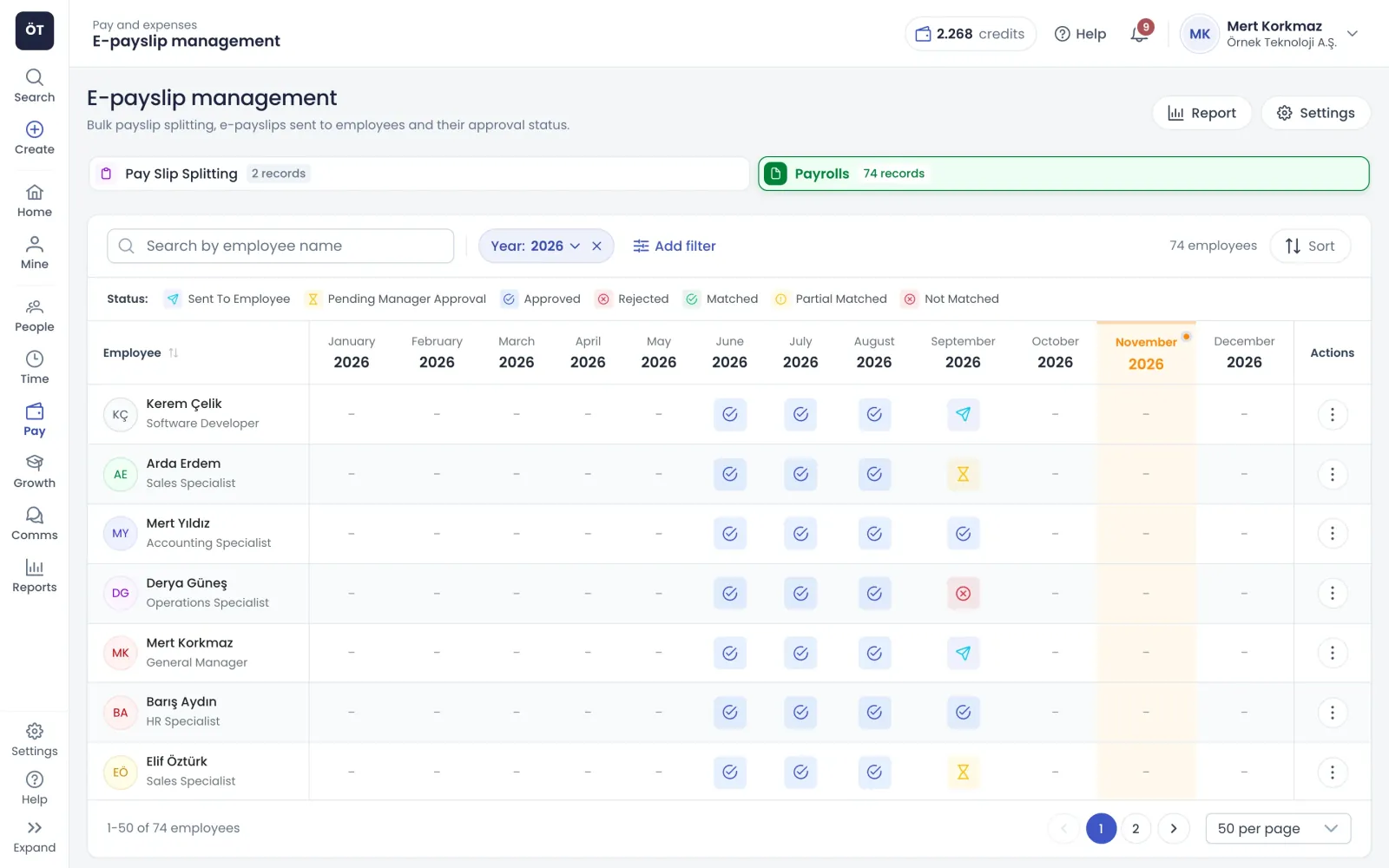
E-payslip tracking: monthly delivery and approval status per employee
What's inside

What e-payslip delivery covers

Sending, approval, rejection, resending and reminders live on one screen, and each payslip keeps its full message history.

Sending

Payslips from Teamso payroll or from elsewhere

When closing a period in payroll you can send e-payslips straight away, or send them later to selected employees. If payroll is prepared in another system, upload a single PDF holding everyone's payslips: it is split into per-person pages, each payslip is matched to an employee by national ID number, and you assign any leftovers by hand.

  • Send everything with one question at period close
  • Bulk PDF wizard with partial match confirmation
  • Upload one PDF for one employee and month
  • Optional note passed on to employees
Approval

Employees approve by SMS code or reject with a reason

When a payslip is sent the employee gets an e-mail, plus an SMS if their phone number is on file. They open the PDF and, if it is right, approve it with the six-digit code sent to their phone; the approval is time-stamped. If something is wrong they reject it with a reason. Manager approval after the employee is optional.

  • Rejection can be allowed or disabled per send
  • Responses cannot be changed after approval
  • Option to skip the manager approval step
  • Leavers receive their payslip as an e-mail attachment
Time stamp

Time-stamped document with a verification QR code

A time-stamped document can be downloaded for an approved payslip. Its first page shows the employee's name, company, national ID number, payroll period, stamp statement and a verification QR code. Every payslip page also carries the same statement and QR code in small print, placed so it is not cut off when printed.

  • Time stamp page at the front of the document
  • Verification QR code on every payslip page
  • Only authorised users can view and download it
  • Approval history kept in the message log
Tracking

Tracking and completing e-payslip approvals

Who approved, who rejected and who has not looked yet, all in one table.

Monthly approval table

The payslips card lists employees in rows and months in columns. Each cell's icon shows whether the payslip is sent, awaiting a manager, approved or rejected. Click a cell to open the payslip with its message history.

  • Filter by employee name and year
  • Period-based and employee-based Excel reports
  • History of sends, rejections and notes

Approval follow-up reports

On the 8th, 15th and 30th day after sending, a list of employees who have not approved arrives by e-mail. Recipients can be e-payslip admins, employees' direct managers and up to 20 extra e-mail addresses.

  • Admins only see the branches they cover
  • Managers only see their direct reports
  • Reports go out automatically at 09:30

Resending a rejected payslip

Open the rejected payslip, read the latest rejection reason and write up what you checked. Optionally upload a corrected PDF; otherwise the existing file is sent again. The reason and your note stay in the history.

  • Note required, up to 1000 characters
  • Resent on the same record
  • Earlier rejection reasons are never lost
How it works

E-payslip delivery in four steps

  1. Grant permissions

    Give the e-payslip admin role to whoever sends payslips and the basic e-payslip role to employees who receive them.

  2. Prepare payslips

    Calculate and close payroll in Teamso, or upload a bulk PDF from another system and match it to employees.

  3. Send payslips

    Choose whether rejection and manager approval apply, add a note if you like; employees are notified by e-mail and SMS.

  4. Track responses

    Watch the monthly table and follow-up reports, and resend rejected payslips with an explanation.

FAQ

Frequently asked questions about E-payslip

Contact us
How does an e-payslip reach the employee?

When a payslip is sent, the employee receives an e-mail, and an SMS if their phone number is recorded and the company has digital credit. The link opens their payslips screen, where they view the payslip in a browser or on their phone and download the PDF. Employees who have left cannot sign in, so they receive the payslip as a PDF attachment.

How do employees approve an e-payslip?

The employee opens the payslip, checks it and presses Approve. Entering the six-digit SMS code sent to their phone records the approval with a time stamp. If the company requires manager approval, the payslip moves to the manager; otherwise it becomes approved straight away. Once approved, the response cannot be changed.

Can payslips produced by another payroll program be sent?

Yes. On the payslip splitting screen you upload a single PDF holding all employees' payslips and choose the period. The file is split into per-person pages and each payslip is matched to an employee by national ID number. Unmatched payslips are assigned by hand after checking the PDF, and any left without an employee are not sent.

What does the time stamp on an e-payslip look like?

A time-stamped document can be downloaded for each approved payslip. Its first page is the time stamp page, with the employee's name, company, national ID number, payroll period, stamp statement and a verification QR code. Each payslip page also carries the statement and QR code at the bottom. Only users with time stamp viewing permission can open it.

What happens when an employee rejects an e-payslip?

The payslip moves to rejected and e-payslip admins plus the employee's direct manager are e-mailed. An admin opens it, reads the reason, writes a note on what was checked and resends it, with a corrected PDF if needed. It goes back to the employee on the same record and the whole conversation stays in the history.

How can I follow up on employees who have not approved?

The monthly approval table shows each employee's status for every month with an icon, and you can export Excel reports. With follow-up reports switched on, a list of employees who have not approved is e-mailed to your chosen recipients on the 8th, 15th and 30th day after sending. Admins and managers only see the people they are responsible for.

Do e-payslips use digital credits?

Delivering an e-payslip by e-mail and showing it on screen does not use credits. The SMS notification sent to employees with a phone number on file, and the employee's SMS-verified, time-stamped approval, use the company's digital credit. If credit runs out, SMS notifications are not sent, so it is worth checking the balance before a large send.

Get started with E-payslip

Try it free or explore the product with our team.

Request a demo