Time and attendance system with QR and location check-in, no terminals
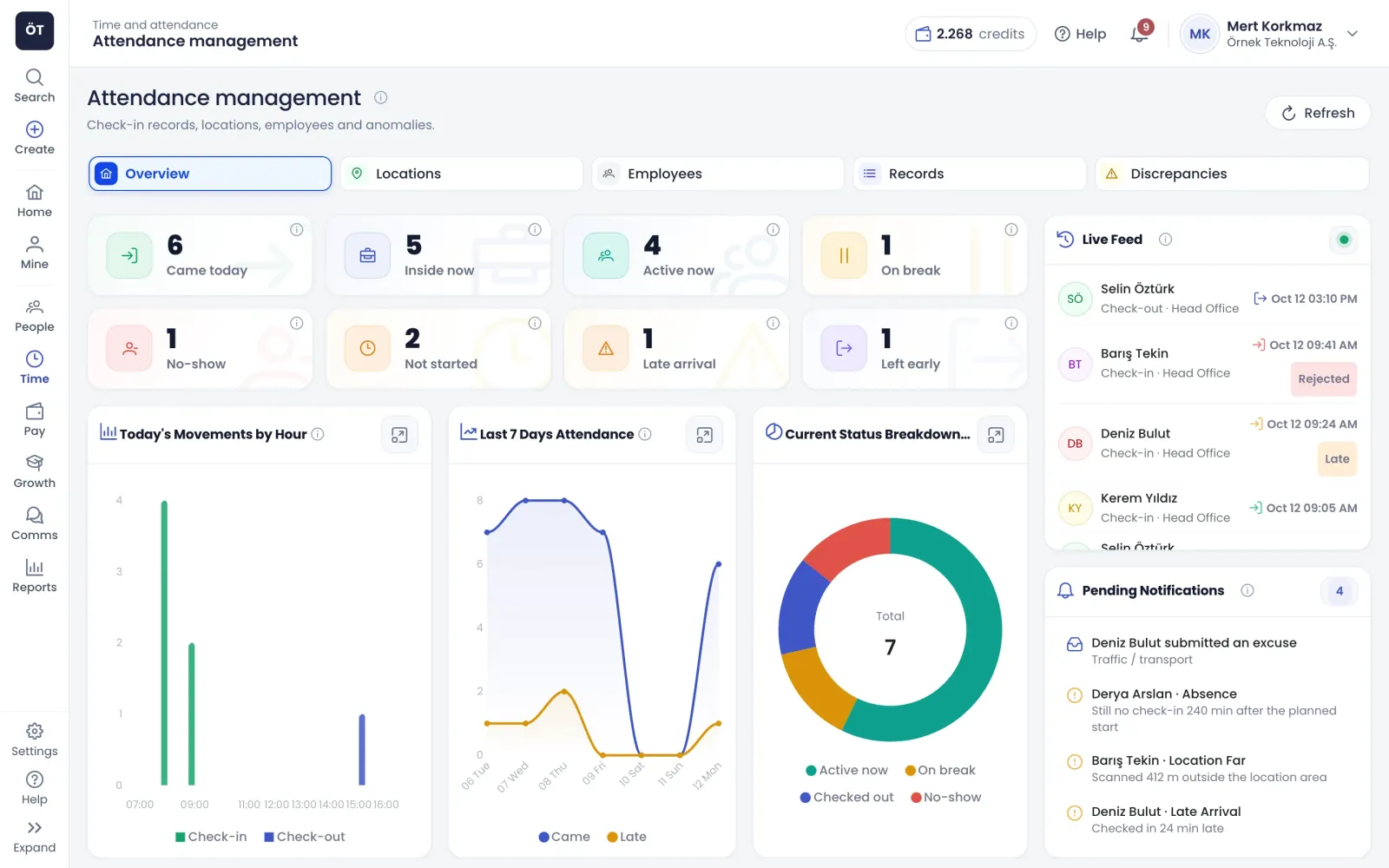
With Teamso time and attendance, employees scan a QR code at the workplace with a phone or computer, check in by location where allowed, or switch on automatic check-in in the mobile app. Every record is checked for location, device and time, compared with the plan and written to the timesheet.
Clocking, exception tracking, manager decisions and payroll impact all run in one module, with no separate terminal or card reader to buy.
QR check-in
Clock in, take breaks and clock out with a QR code
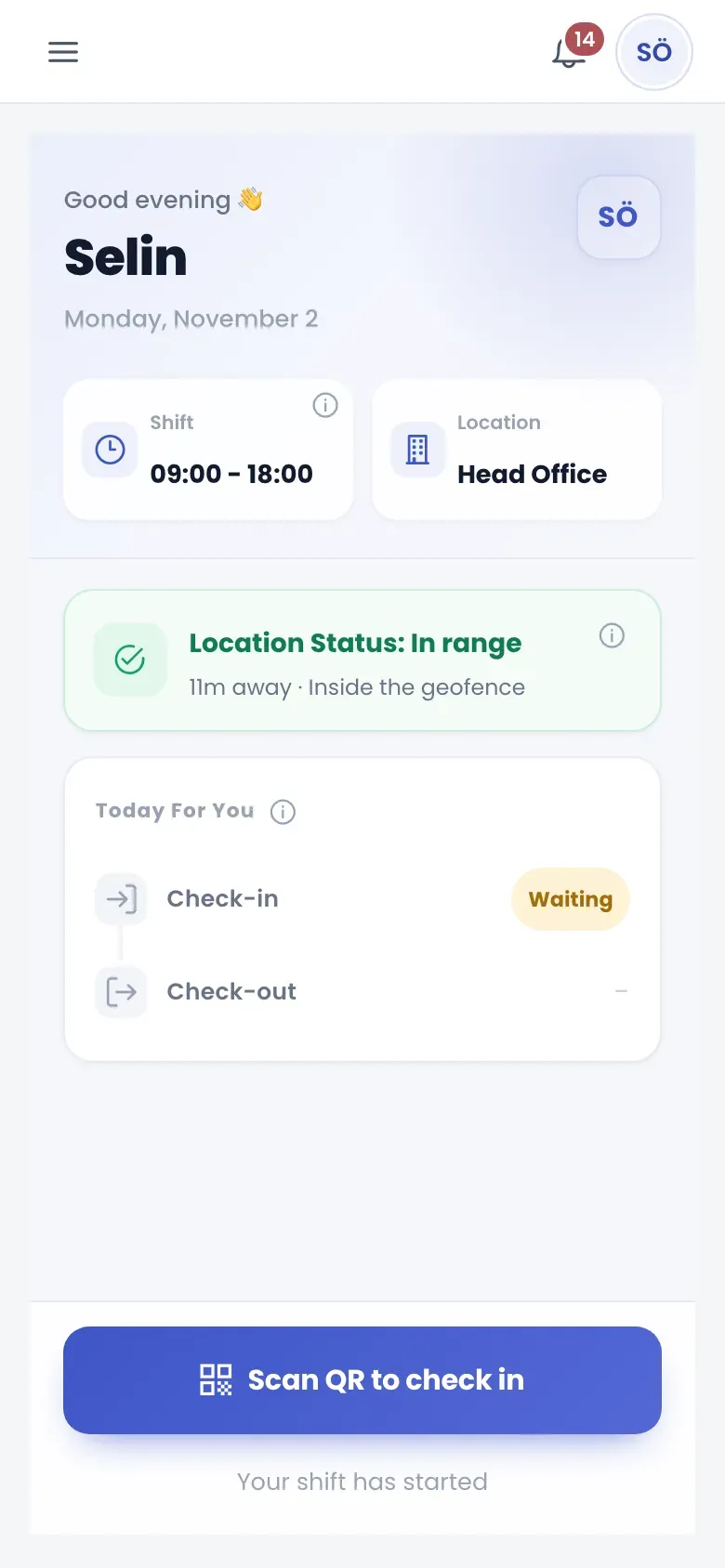
Create a separate QR code for every site and door. A dynamic code rotates on a tablet or monitor at the entrance at the interval you choose and is cryptographically signed; a scanned code is only valid for a short window, so taking a photo of it to scan later does not work. Where you cannot put a screen, print and post a static code.
Scan with a phone or a computer camera
One code per door and bulk QR printing
Screenshot protection and duplicate scan blocking
Late, successful and rejected scans kept apart
app.teamso.com
Location and GPS
Geofence, GPS accuracy margin and QR-free check-in
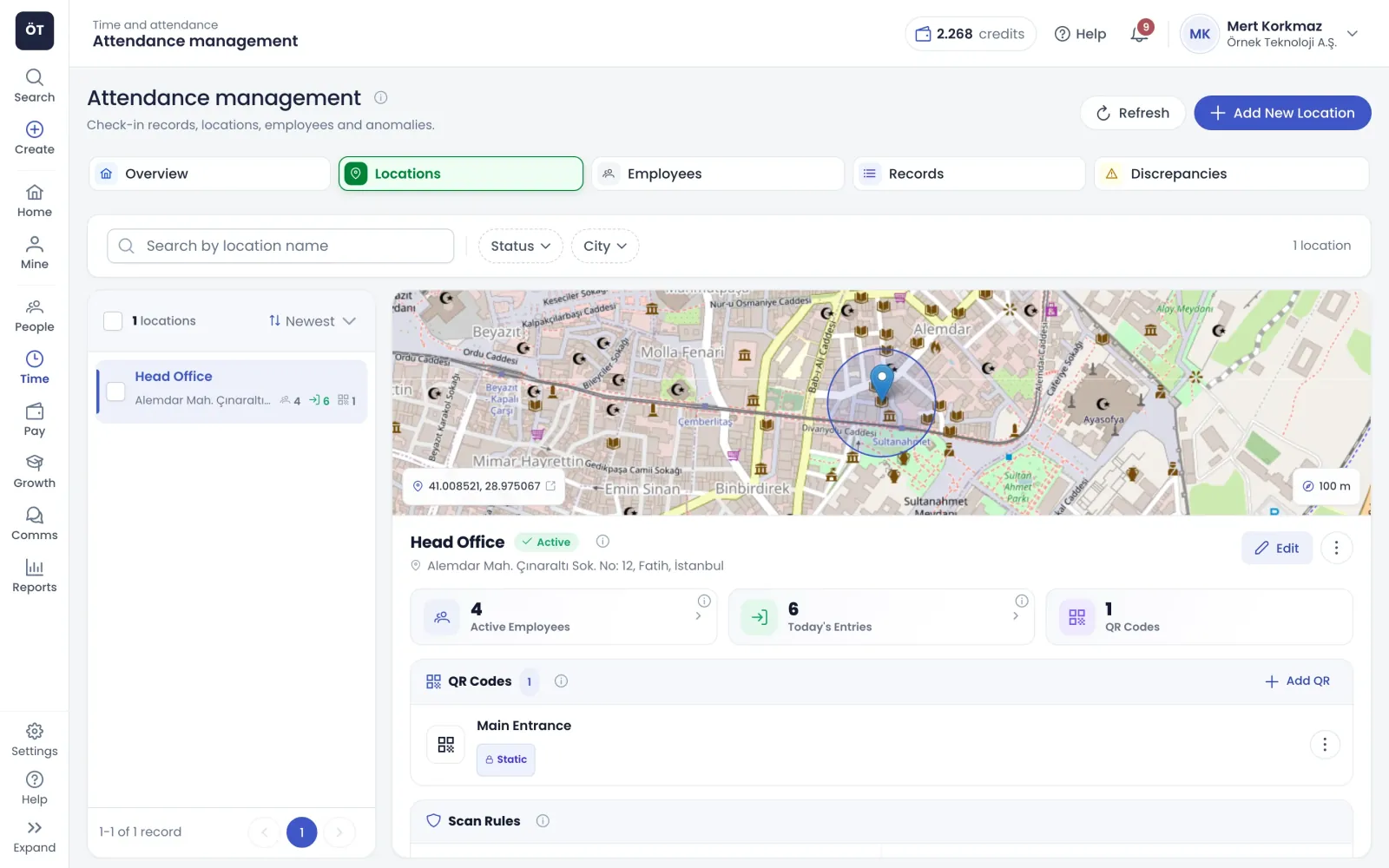
Define a site by searching an address or dragging a pin on the map, then set the radius within which scans are accepted. When a phone reports a rough fix, its GPS accuracy margin is taken into account, and the scan is accepted if the geofence falls inside that margin. An extra margin setting helps indoors, and sites can allow check-in by location alone.
Satellite view to place the pin on the building
Default scan radius of 100 metres, adjustable
Rejection screen shows distance and GPS accuracy
Off-site scanning option for field teams
app.teamso.com
Automatic check-in
Automatic check-in and check-out by location in the mobile app
Employees switch on automatic check-in in the Teamso mobile app after giving explicit consent. Even with the app closed, entering the geofence records a check-in, and if the company enables check-out on exit, leaving records a check-out. Check-ins are only accepted around a planned shift, and short exits in the first ten minutes are not treated as leaving.
A phone notification for every automatic record
Leaving during a break is not a check-out
No check-in without a planned shift that day
Consent withdrawn with one tap, tracking stops
Control and payroll
Exceptions, decisions and transfer to timesheets
Attendance records are not just stored; they are measured against the plan and the outcome reaches payroll.
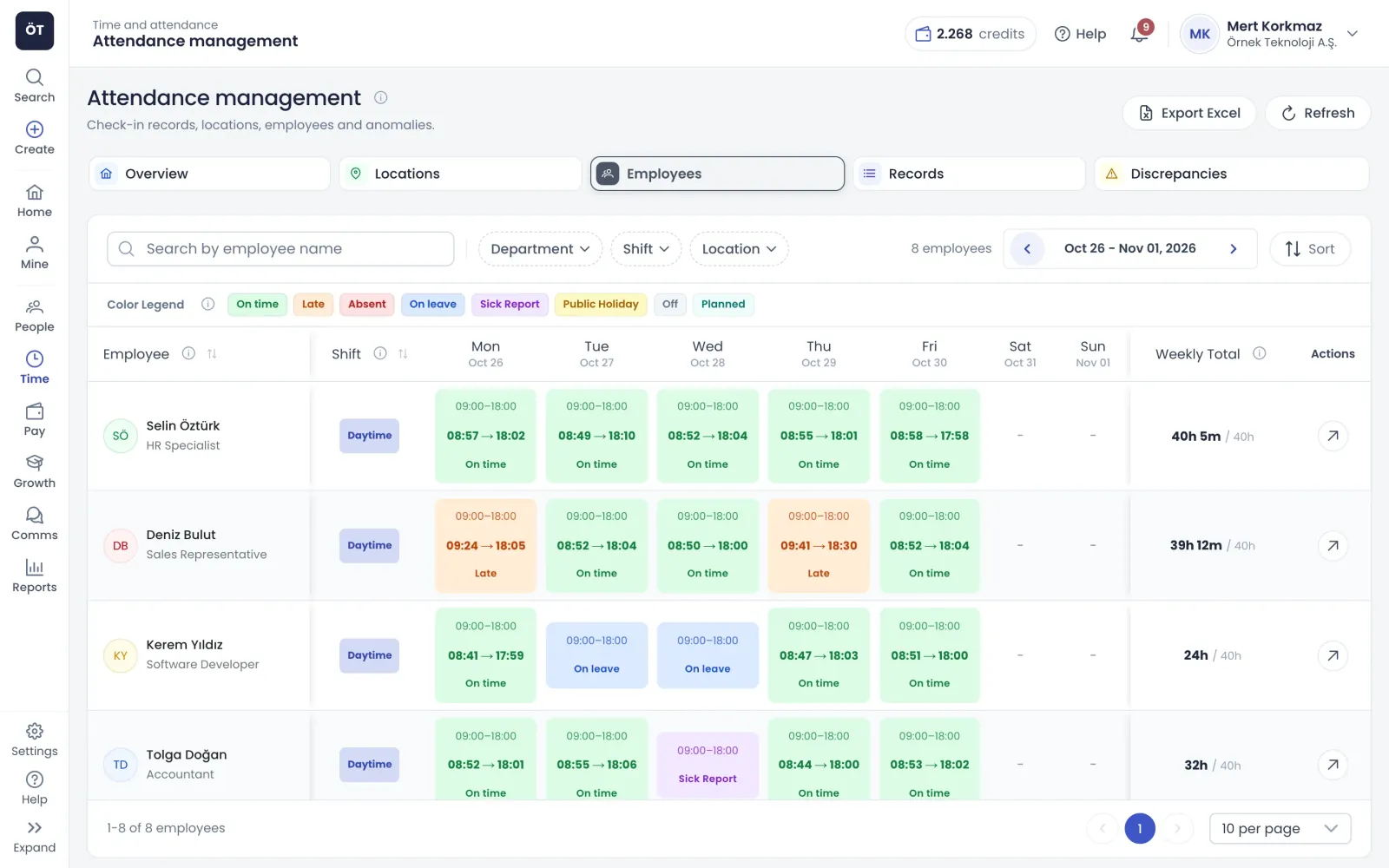
Lateness thresholds
Set tolerance, warning, QR lock and absence thresholds in order. A check-in after tolerance is recorded as late, the warning threshold opens an exception, and the lock threshold rejects the scan. Weekends can have their own tolerance.
Absence checks run every 15 minutes
Early leave and long breaks as separate exceptions
Mandatory excuses can be switched on or off
Exceptions and excuses
Lateness, early leave, long breaks and absences land on the exceptions list. Employees pick a reason and send an excuse from the scan screen; managers approve, reject, add a note or ask for an excuse. Each record's payroll impact has its own column.
Approved exceptions never create a deduction
Hourly, daily or no-deduction payroll method
Rejections are final, so add a note first if unsure
Transfer to timesheets and overtime
Accepted scans become actual working hours in the timesheet and are compared with the plan. If actual time exceeds the plan, an overtime record can be opened for that day. Decisions reach that month's payroll as missing hours or days.
Manual records count exactly like real scans
No deduction on a full day of approved leave
Rejected minutes become a missing day every 7.5 hours
KVKK and a non-biometric method
Verification uses the QR code, location, device pairing and an optional photo; there is no fingerprint or face matching. For automatic check-in, location is only processed when a geofence boundary is crossed, no route is stored, and history is deleted after 90 days. See security.
Automatic check-in needs a privacy notice and consent
Scan photos stored encrypted, with set retention
Every photo view is written to the audit log
How it works
Set up time and attendance in four steps
Assign responsibilities
Give the basic user role to everyone who will scan, and the manager or admin role to managers and HR.
Set the rules
Save lateness thresholds, the early check-in limit, automatic check-out options and the payroll deduction method.
Create sites and codes
Use the site wizard to define the workplace, scan radius and first QR code, then print it or keep it on screen.
Assign employees
Give employees site access and announce the scan screen; first scans start appearing on the overview board.
Connected modules
Modules connected to time and attendance
Every attendance record becomes a source for the rest of your working time data.
Does a time and attendance system like this need special hardware?
No. Employees scan the QR code with the Teamso mobile app or a phone or computer browser. A dynamic code only needs a tablet or monitor at the entrance; where there is no screen, you print a static code. If you already have attendance terminals, Patron PDKS or the Teamso PDKS API can bring their records into the timesheet too.
Can someone scan the QR code without being on site?
Each scan checks the phone's location against the site's scan radius; scans outside the area are rejected and the rejection shows the distance. Dynamic codes change quickly and cannot be used twice. For extra security you can switch on device pairing, a photo with every scan, and scanning only from approved IP addresses.
What if GPS drift causes scans to be rejected?
When a phone reports a rough location, its GPS accuracy margin is taken into account, and the scan is accepted if the geofence falls within it. If drift continues indoors, an admin can increase the site's scan radius or the extra geofence margin in settings. Precise location turned on and a pin placed on the building also help.
How does automatic check-in work in the mobile app?
Employees switch it on in the mobile app after giving explicit consent and allowing location access at all times. Even with the app closed, entering the geofence records a check-in, and if the company setting is on, leaving records a check-out. Check-ins are only accepted around a planned shift. It runs on one phone at a time and tracking stops as soon as it is switched off.
Does the system process biometric data under KVKK?
No. Teamso time and attendance uses no fingerprint or face matching; verification relies on the QR code, location, device and an optional photo. Photos are stored encrypted and deleted after the retention period you set. Automatic check-in requires a privacy notice and explicit consent, location is only processed at geofence crossings, and history is deleted after 90 days.
How do attendance records reach timesheets and payroll?
Accepted scans are written to the timesheet as actual working hours and compared with planned hours. For lateness, early leave, long breaks and absences, the manager's decision is passed to that month's payroll as missing hours or days according to the chosen deduction method. An approved exception never creates a deduction under any method.
Who can do what in time and attendance?
There are four responsibilities. Basic users scan and send excuses for their own exceptions. Managers decide on exceptions and excuses for their branches, add manual records and approve devices. Admins manage sites, QR codes, settings, notifications, API keys and webhooks. The responsibility manager assigns these roles to users.
What happens if an employee forgets to scan?
A manager adds a manual record from the records tab, and it is processed in the timesheet and payroll like a real scan. If automatic check-out is switched on, a missing check-out is filled with the planned end time two hours after the shift ends. With the setting off, the missing check-out goes to the manager as an exception.