
Digital pre-boarding that finishes the paperwork before day one

  • Candidates can complete it on a phone
  • Sequential approval per branch
  • Registry and seniority open on transfer
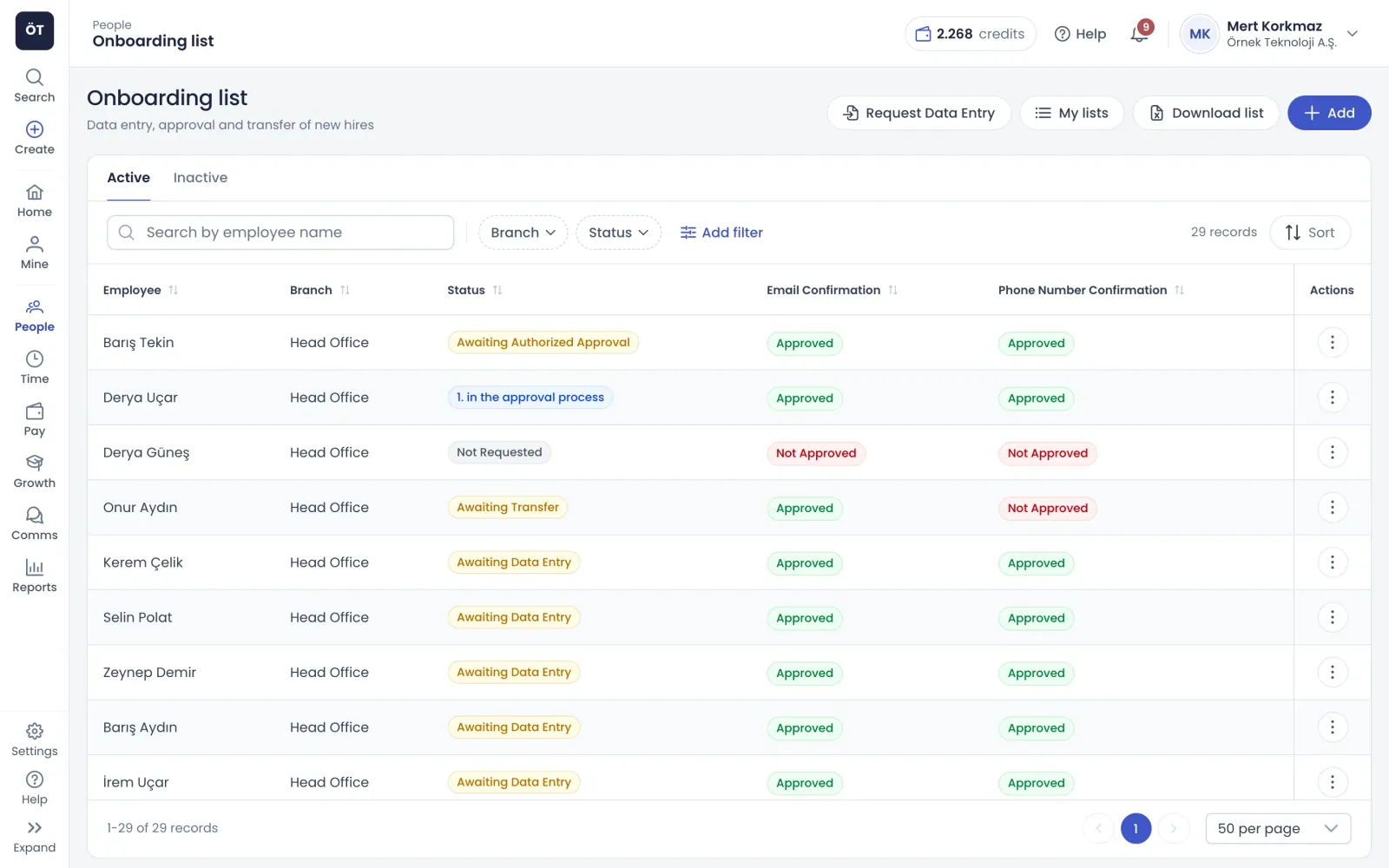
Onboarding list: new starters' data entry and approval status
What's inside

What digital pre-boarding includes

Pre-boarding tracks four stages in a single list, from invitation to data entry, approval and transfer to the employee list.

Candidate form

New hires enter their own details and documents

People added to the list receive login details by email and SMS. Once data entry is requested, they complete a four-step form: email and phone verification, personal details, additional details and documents. Additional details cover family, birth, emergency contact, personal status, education, salary account and home address. The form warns if an IBAN does not match the chosen bank.

  • Documents upload as JPG, PNG, WEBP, HEIC or PDF
  • Company documents are read and confirmed inside the form
  • Time-stamped documents are confirmed with an SMS code
  • The form locks once the candidate presses Complete
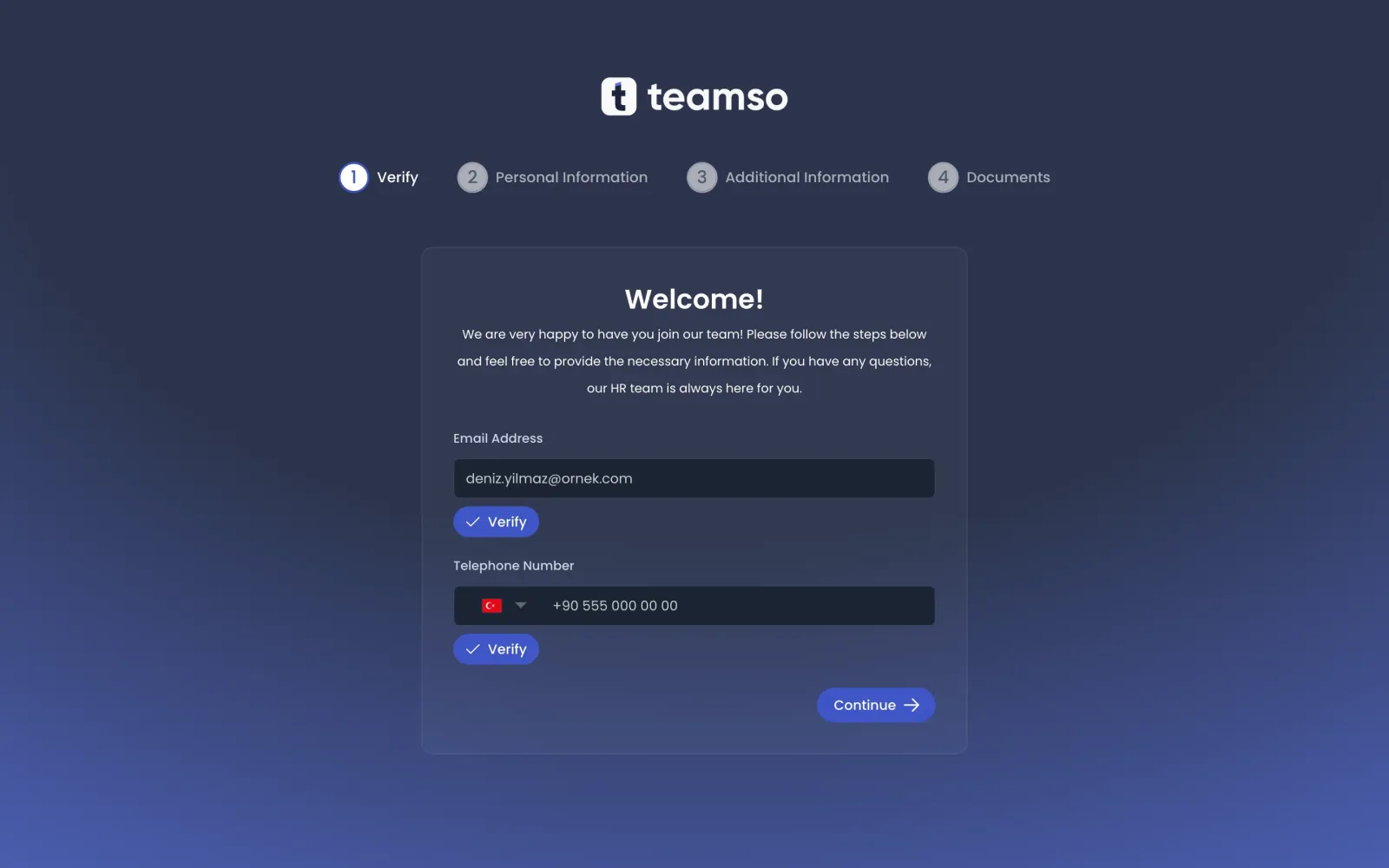
Candidate screen: step-by-step document collection with email and phone verification
Document sets

Hiring document sets that vary by branch

The documents you need are defined as groups in the e-document module. Pick a group in the data entry request and its documents fill in automatically, with branch-specific groups clearly marked. Split documents into pages and candidates must confirm everything on one page before moving on. You decide whether candidates may reject a document.

  • One request sends the same set to several candidates
  • Drop any document from the group for a single request
  • Candidates get an email and SMS when the request is saved
Approval and transfer

Branch approval and a one-step transfer to employees

When a candidate completes the form, the record joins the approver sequence defined for their branch. Approvers see fields that changed in a separate section, can reject individual documents, and then approve, ask for corrections or reject. After the final approval HR sets the start date, chooses position, department and manager and transfers the person.

  • Future start dates transfer automatically that morning
  • Approved documents and identity data move to the registry
  • Teamso warns if the same ID number already exists
Statuses

See exactly where each new hire stands

The pre-boarding list filters by status and sorts records in process order.

Data entry stage

A newly added person starts as Not Requested and moves to Awaiting Data Entry once you ask for their details. If an approver asks for corrections, the record becomes Awaiting Revision and the candidate sees the reason at the top of the form.

  • Candidates cannot open the form before a request
  • Correction requests are emailed with the reason
  • Reset restarts a record from the beginning

Approval stage

Once the form is complete, the record appears at its step in the approval chain. When the chain ends, or if the branch has no chain, it moves to Awaiting Authorised Approval and waits for an HR user with transfer rights.

  • Approvers open details only when it is their turn
  • Approval is blocked while a document is rejected
  • Rejection deletes the documents the candidate uploaded

Transfer stage

With a start date of today or earlier, the person becomes an employee immediately and keeps the same email and password. Future dates leave the record Awaiting Transfer. If a blacklisted former employee is found, the transfer stops.

  • User account and position record open on transfer
  • Seniority starts from the start date
  • The list can be downloaded as Excel
How it works

Pre-boarding in four steps

  1. Add the new hire

    Add the person with their branch, and login details go out automatically by email and SMS.

  2. Request their data

    Choose a document group and request data entry. The candidate completes the form, handles documents and submits.

  3. Approve the record

    Branch approvers review the record in order and can ask for corrections with a reason or reject it.

  4. Transfer to employees

    HR enters the start date, picks position and manager, and the person joins the employee list on that day.

FAQ

Frequently asked questions about Digital welcome

Contact us
What is digital pre-boarding and why use it?

Pre-boarding lets you bring a new hire into Teamso before they become an employee. They log in with the details you send, fill in personal, family, address and bank information and confirm or upload the documents you need. Branch approvers check the record and HR transfers the person to the employee list in one step, so paperwork is done before day one.

Can new hires complete the form on their phone?

Yes. The steps are the same on a phone, only the step titles are hidden on narrow screens. Documents can be uploaded as photos in JPG, PNG, WEBP or HEIC, or as PDF, up to 20 MB each. HR is advised to handle the list, approvals and transfers on the web.

What information and documents are collected?

The form covers identity and personal details, parents' names, birth details, an emergency contact, blood group, marital status, retirement, disability and military status, education, workplace, bank and IBAN, and home address. Documents come from the groups you define in the e-document module, and different branches can use different sets.

Who approves the new hire's information?

Each branch has its own approver sequence. When the candidate completes the form, the record enters that sequence and approvers review it in turn, approving, asking for corrections with a reason, or rejecting. If a branch has no approval chain, the record goes straight to the HR user who handles transfers.

What happens when a candidate is transferred to the employee list?

With a start date of today or earlier, a user account opens, identity details and approved documents go to the registry, position and manager go to the position record, and seniority starts from the start date. The person keeps logging in with the same email and password. Future start dates transfer automatically that morning.

What if we rehire a former employee?

If an active or passive employee with the same national ID number exists, a warning appears during transfer. Confirm it and the existing employee is updated with the pre-boarding data and reactivated if passive. Blacklisted people are not transferred and must be handled manually. It is worth checking the seniority date afterwards.

How do candidates move from the applicant tracking system?

A candidate marked as Hired in the applicant tracking system can be sent to pre-boarding with one action, which adds them to the list and sends a welcome email and SMS with their login password. The hiring team does not have to retype anything to start the joining process.

Get started with Digital welcome

Try it free or explore the product with our team.

Request a demo