
Compensation review: collect raise proposals, approve them, update pay

  • Raise ranges by performance score
  • Approval chains per department
  • Approved pay written to pay records
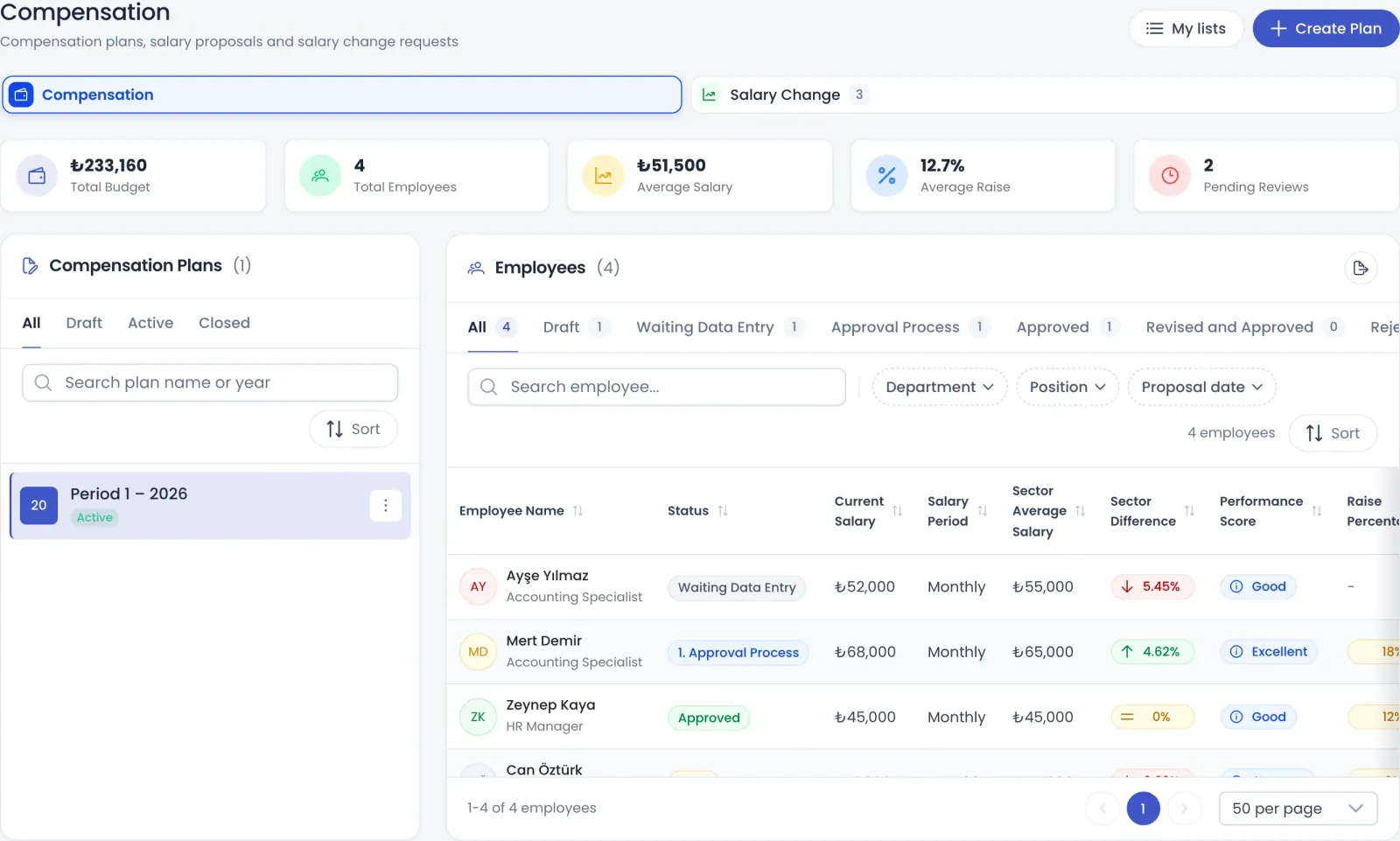
Compensation: budget summary, pay plan and employee salary proposals
What's inside

What compensation review in Teamso covers

Raise cycle planning, proposal entry, approval and pay updates sit on one screen, and one-off salary changes follow the same approval logic.

Pay plan

Set up a pay plan in four steps

Create Plan opens a draft plan for the year. In the performance scale step you enter a minimum and maximum raise percentage for each score, in the employees step you give each employee a score, and in the reviewers step you choose who proposes raises at company, branch, department or employee level. Check the summary and start the plan.

  • Assign a score to everyone still blank in one go
  • Employees missing salary data are flagged
  • Market salary average field for comparison
  • Draft plans resume from the step you left
Proposals

Reviewers propose raises and justify exceptions

Reviewing managers see the employees assigned to them with current salary, market gap and performance rating. They enter a raise percentage or a new salary and the other field is calculated. If the raise falls outside the score's range, a justification becomes mandatory. Proposals can be saved as drafts or sent straight for approval.

  • Enter a rate or an amount, get the other
  • Out-of-range proposals cannot be saved without a reason
  • Rejected proposals can be corrected and resent
  • Reviewers get the needed permission automatically
Approval

Approval chain and pay update at period close

A proposal moves through the approval steps defined for the employee's department, and approvers can adjust the amount as they approve. When you close the period, each approved employee gets a new pay record with raise as the reason, and payroll uses the new salary from the period in which the change date falls.

  • Proposals approved with changes get their own status
  • Rejection reason required and shown to the reviewer
  • Closed plans can be reopened for corrections
  • Children count and IBAN carried over from the old record
Tracking

Tools for tracking the review cycle

From budget to single changes, every part of the process stays visible.

Plan summary cards

The plan owner sees total budget, headcount, average salary, average raise and pending reviews on summary cards. Pending reviews count employees with no proposal yet or a proposal still in draft.

  • Status tabs to separate proposals
  • Filters for department, position and proposal date
  • Sort by any column

One-off salary change approval

With salary change approval switched on, pay changes are no longer written directly on the employee record; they become requests that go through approval. After the final approval, a new pay record starts on the change date given in the request.

  • Currency, pay period and net or gross choice
  • Nobody can raise a request for their own salary
  • Approved requests cannot be edited or deleted

Export the plan to Excel

Have the old and new salaries of everyone in a plan prepared as an Excel list. It is built in the background and downloaded from the notification or the My Lists window, ready for approval meetings or the accounting team.

  • Old and new pay in the same file
  • Prepared lists kept in My Lists
  • Large plans prepared in the background
How it works

A raise cycle in four steps

  1. Define approval flows

    Set compensation approvers for each department and make sure employees have a branch, department and position.

  2. Build the plan

    Enter performance scores and raise ranges, score each employee, pick reviewers and start the plan.

  3. Collect proposals

    Reviewers enter raises and send them on; approvers approve, adjust or reject with a reason in turn.

  4. Close the period

    When no reviews are pending, close the period; approved salaries are written to pay records and reach payroll.

FAQ

Frequently asked questions about Compensation review

Contact us
How are raise ranges set in compensation review?

In the performance scale step of a pay plan you give each performance score a name and a minimum and maximum raise percentage, for example a range for exceeds expectations. If a reviewer proposes a raise outside the employee's range, they must write a justification, and a proposal without one is not saved.

Who enters raise proposals and who approves them?

The plan owner assigns reviewers at company, branch, department or employee level, and reviewers receive the needed permission automatically. A reviewer enters the proposal and sends it for approval, where it moves through the steps defined for the employee's department. If a department has no approval flow, the proposal waits for the compensation admin.

How does an approved raise reach payroll?

When the plan owner closes the period, each approved employee gets a new pay record with raise as the reason. It starts on the date the proposal was approved and the previous record ends that day. Payroll reads salary from these records, so the new pay is calculated from the payroll period in which the change date falls.

Can a closed pay plan be corrected?

Yes. Reopen the period from the plan menu and the plan becomes active again. When you close it after making corrections, pay records written by the plan are updated with the current proposals. If a proposal is no longer approved, the record from the earlier close is deleted and the employee's previous pay record applies again.

Can salary changes outside a plan go through approval?

Yes. Switch on the approval flow in the salary change tab and pay changes become requests that pass through the approval chain. Each request needs the employee, change date, currency, salary, pay period and net or gross. After final approval, a new pay record applies from the date in the request.

Does compensation review send notifications?

Starting a plan, sending proposals, approving and closing the period do not send e-mails or notifications. Reviewers and approvers follow pending work through the status tabs on the compensation screen, so it is a good idea to let reviewers know yourself when a plan has started.

Get started with Compensation review

Try it free or explore the product with our team.

Request a demo