
Onboarding software for the first weeks and the last day

  • Automatic surveys after the start date
  • Time-boxed buddy with intro email
  • Exit surveys filtered by leaving reason
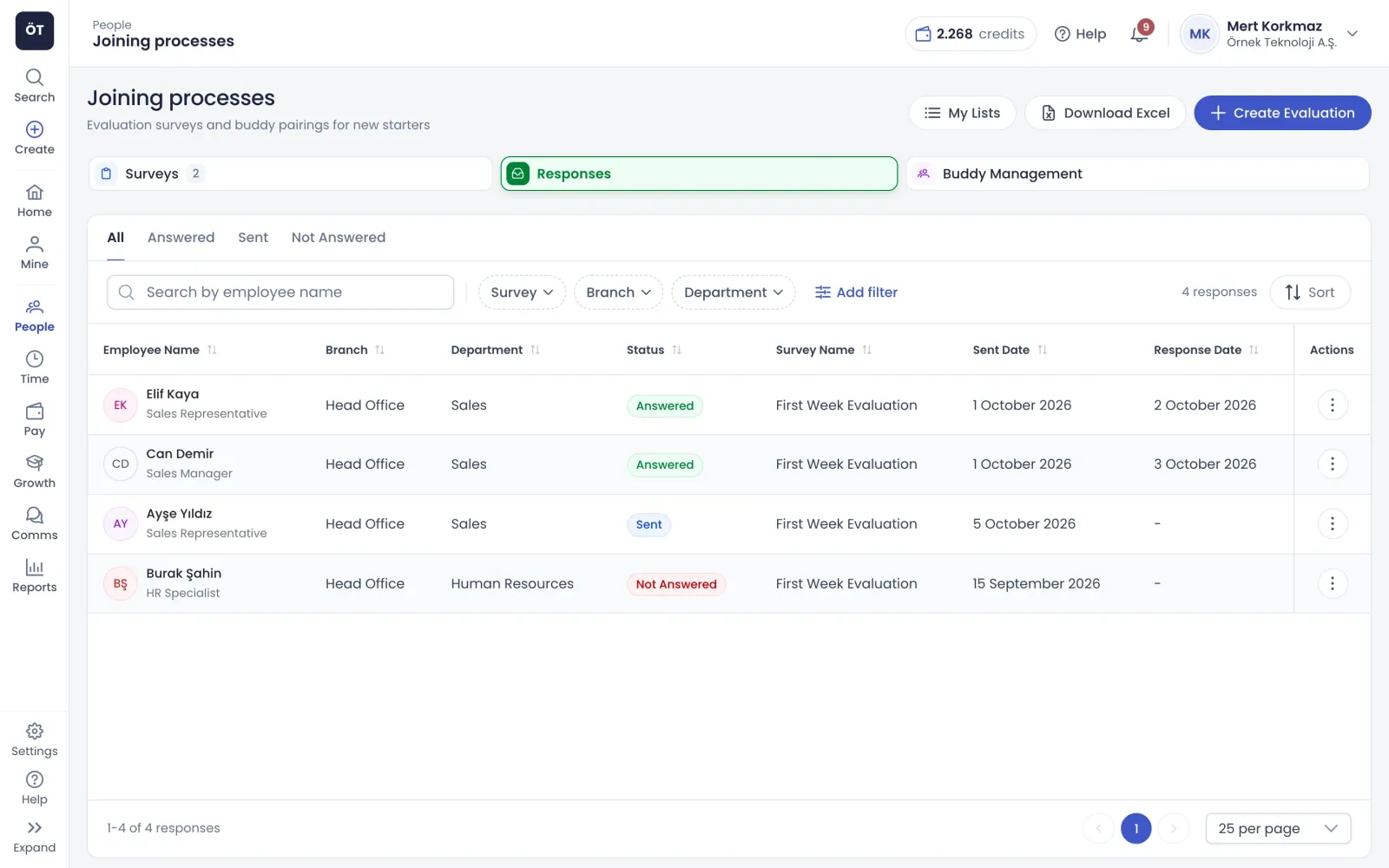
Joining processes: first week evaluation survey responses
What's inside

What onboarding and offboarding include

The onboarding and offboarding screens work the same way: build a survey once, let the rule send it, and follow the answers in one list.

Onboarding surveys

Feedback surveys that reach new joiners on time

Build surveys from sections and questions with single choice, multiple choice and free text answers. With automatic sending, the survey goes out in the morning a set number of days after the start date, optionally to the manager and buddy as well. A first-month and a sixth-month survey can run side by side. Closing period, reminders and anonymity are up to you.

  • AI drafts sections and questions from your goal and tone
  • No employee data is sent, personal details are stripped
  • Each survey reaches the same employee only once
  • Manual sending targets chosen people on a chosen date
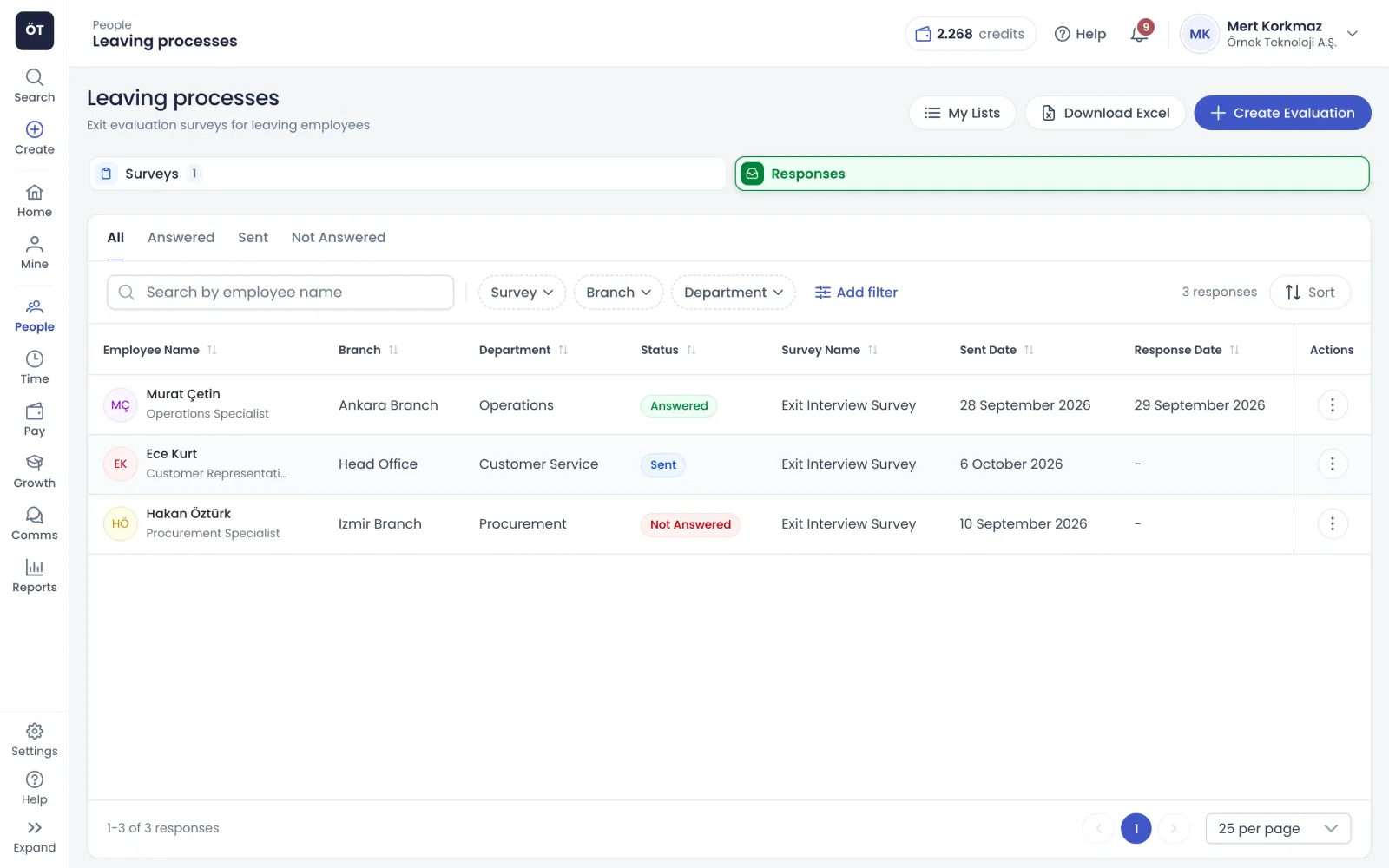
Leaving processes: exit interview survey responses
Buddy

Time-boxed buddy pairing for new hires

On the buddy tab, pair a new joiner with an experienced colleague for anywhere from 1 to 365 days. With the intro email switched on, both people receive a message introducing them to each other. When the period ends the pairing completes overnight, and you can finish it early or swap the buddy at any time.

  • Each employee has one active buddy at a time
  • The period counts from the new hire's position start
  • Buddies can be added as onboarding survey recipients
Offboarding

Exit surveys and a controlled leaving process

Exit surveys go out automatically a set number of days before the leaving date and can be limited to specific official exit reasons. The deactivation window first asks you to return assigned assets, then records the leaving date, exit reason and rehire status. For future-dated exits you can also set when connected systems should close the account.

  • Exit surveys go to the leaver and optionally their manager
  • Deactivating someone inside the window sends the survey immediately
  • A summary step explains payroll and attendance effects before saving
Process

Every step from joining to leaving is on record

Survey answers, buddy pairings and exit records all sit on the same employee record.

Follow answers in one list

The responses list counts answered, sent and unanswered surveys on separate tabs. Narrow it by survey, branch or department, and open any answer alongside the employee's branch, manager and start date.

  • Single answers download as Excel or PDF
  • The full list is prepared as Excel in the background
  • Unanswered surveys can be sent again

Probation and the first months

With probation reminders on, the manager gets an email and an in-app notification a set number of days before the chosen month of employment ends, so first-months review meetings are not forgotten.

  • Reminder months are chosen per company
  • Company admins can be notified too
  • Timing is based on the start date

Role-based access

There are three roles: the manager role does everything including deletion, the admin role creates and publishes surveys, assigns buddies and adds comments, and the viewer role only sees answers and the buddy list.

  • Surveys can allow HR comments on answers
  • Anonymous surveys hide who answered
  • Answered surveys lock their question structure
How it works

Set up onboarding in four steps

  1. Grant access

    Give your HR team onboarding and offboarding permissions and make sure employee start dates are filled in.

  2. Build surveys

    Write onboarding and exit surveys yourself, or let AI prepare a draft that you then edit.

  3. Choose sending rules

    Set the days and recipients for automatic sending, add an exit reason filter if needed, and publish.

  4. Assign buddies

    Pair every new joiner with a buddy for a set period and follow incoming answers in the responses list.

FAQ

Frequently asked questions about Onboarding and offboarding

Contact us
When does onboarding software send the first survey?

With automatic sending, the survey goes out in the morning a set number of days after the start date. Teamso uses the company start date from the seniority record, or the first position start if that is missing. You can include the employee, their manager and their buddy. Manual sending goes to the people you pick on the date you pick.

Can AI help write onboarding surveys?

Yes. Choose Create with AI, describe the goal, audience, number of questions, tone and language, and you get draft sections and questions. The draft uses digital credits only when it succeeds. Only what you type in the form is sent to the AI, never employee data, and you edit the draft before publishing.

How does the buddy programme work?

On the buddy tab you choose the new joiner, the buddy and a period between 1 and 365 days. With the intro email on, both receive an email introducing them. The pairing completes automatically when the period ends. An employee can only have one active buddy at a time.

Does every leaver receive the exit survey?

With automatic sending, the exit survey goes to employees whose leaving date falls within the window you set, and you can limit it to a specific official exit reason. Employees who are only deactivated, without an official exit, do not get it automatically; use manual sending for them.

What does Teamso check when an employee leaves?

The deactivation window first asks you to return any assets assigned to the employee. It then records the leaving date, the official exit reason and rehire status. A summary explains what happens on save, such as login, attendance and timesheet closing on the exit date. If an exit survey is defined, it is sent according to its rule.

Can survey answers be anonymous?

Yes. Turn on anonymous survey in the settings and answers appear as Anonymous in the list and on the answer screen. Anonymity can be switched on after publishing but never switched off, which protects the trust of people who have already answered. Response status and counts are still tracked.

Can I report on onboarding and exit feedback?

The responses list filters by survey, branch and department and shows counts on status tabs. Download a single answer as Excel or PDF, or the whole list as Excel. The Excel file is prepared in the background and is ready to download from My Lists.

Get started with Onboarding and offboarding

Try it free or explore the product with our team.

Request a demo