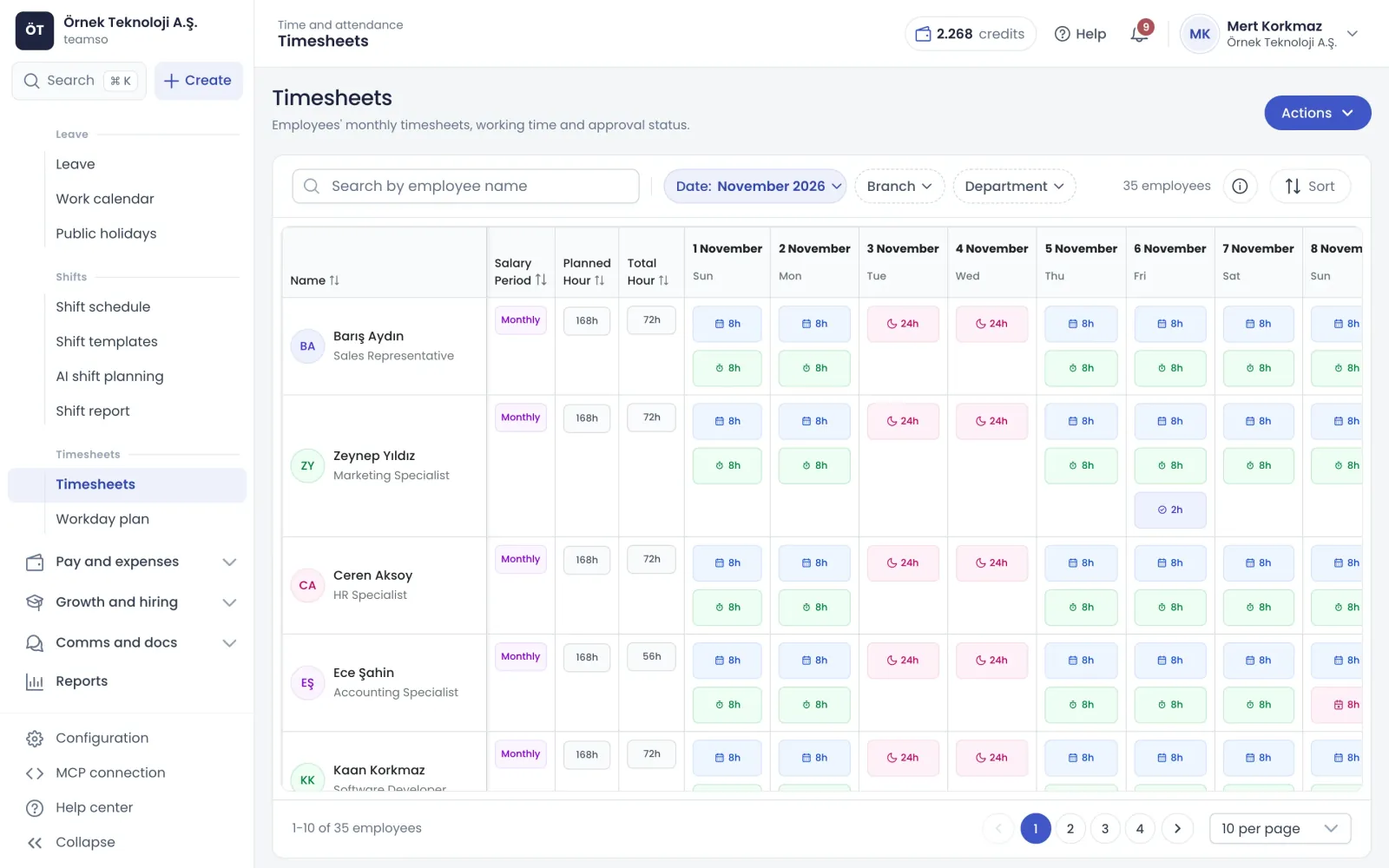
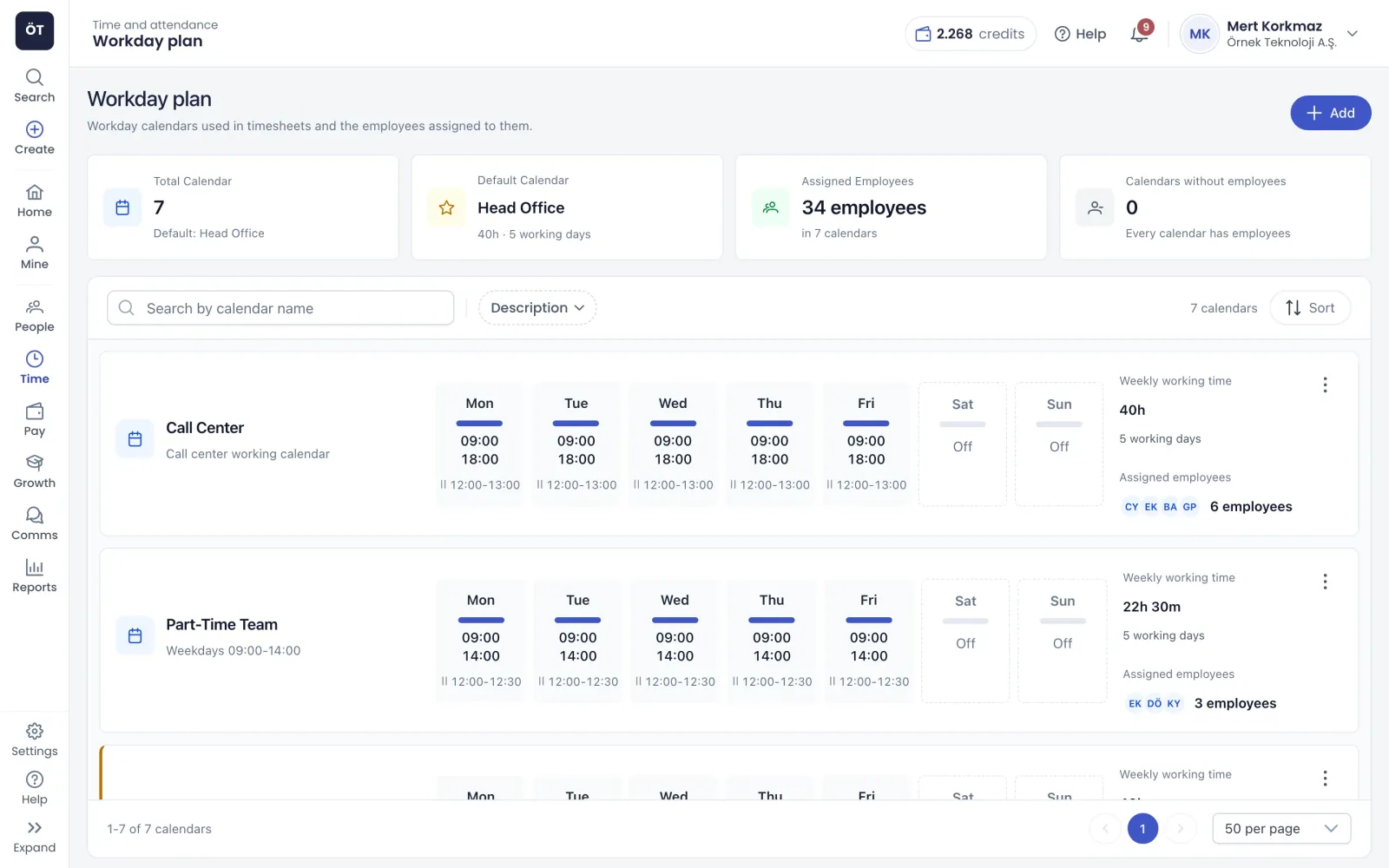
The timesheet is the single record of working time. Shifts, attendance, leave and overtime meet here and flow into payroll at month end.
Timesheet list
See and fix any day in one window
Click a day in the timesheet list and a day timeline opens, with planned hours, actual hours, leave, public holidays and overtime on the same time axis. Add or edit actual hours, enter breaks, record an absence using SGK absence reasons, and accept the difference between plan and actual with a single button.
Colour coding for planned, actual, attendance and leave
Complete the end time of a missing check-out
Half-day holidays shown from 13:00 onwards
Open an overtime record straight from the day window
app.teamso.com
Hour sources
You decide where planned and actual hours come from
For each employee, planned hours come from a workday plan or a shift plan, and worked hours from attendance records or the plan itself. For employees with automatic actual hours switched on, past days are filled in every night, while days you entered or edited by hand are left alone.
Day and night workday plans with breaks
Template settings applied automatically to new hires
Public holiday calendar on or off per employee
Mismatch warnings switched on or off per person
You decide where planned and actual hours come fromDay and night workday plans with breaksTemplate settings applied automatically to new hiresPublic holiday calendar on or off per employee
Attendance import
Check-ins and check-outs land in the timesheet on their own
Besides Teamso's own QR and location based time and attendance system, you can connect Patron PDKS directly or any other device provider through the Teamso PDKS API. Every record appears with its status, and matched pairs count towards working time. Early or late punches within your tolerance are not treated as mismatches.
Patron PDKS connection with phone-based employee matching
API keys for other providers to push records
Configurable punch tolerance and long-absence filter
Missing punches and long sessions clearly labelled
Check-ins and check-outs land in the timesheet on their ownPatron PDKS connection with phone-based employee matchingAPI keys for other providers to push recordsConfigurable punch tolerance and long-absence filter
Bulk tools
Tools that speed up timesheets for large teams
When you do not need to correct day by day, bulk actions and rules do the work.
Turn planned into actual
For the date range and employees you pick, actual records are created only on days that have a plan and nothing else. Days with leave, holidays or absences are skipped, and future dates are never converted.
Days that already have actual hours are skipped
Future days are left untouched
Works on a chosen date range and employee set
Bulk timesheets with Excel
Pick a month, download the template from the system, fill it in and upload it. The import is all or nothing: if any row has an error, no rows are saved and the results window lists each problem row.
Only the template downloaded from Teamso is accepted
No partial saves from a faulty file
Full lists prepared in the background for Excel download
Overtime in its own columns
Approved overtime is not deducted from actual hours. It appears in separate columns for working day, weekly rest day and public holiday overtime. On half-day holidays, only work after 13:00 counts as public holiday overtime.
Working day overtime in a separate column
Rest day and public holiday overtime tracked apart
Pending and approved overtime in different colours
Months lock with payroll
There is no separate lock step for timesheets. A month is finalised when its payroll period is closed, after which adding or deleting hours and Excel uploads for that month are rejected. Reopening the payroll period allows corrections again.
Edits blocked once the payroll period closes
Corrections made by reopening the payroll period
Automatic attendance records are not affected
How it works
Set up timesheets in four steps
Create workday plans
Define working days, hours and breaks, then assign the plan to employees or make it the company default.
Choose hour sources
For each employee, take planned hours from the workday plan or shifts and actual hours from attendance or the plan.
Connect attendance
Link Teamso PDKS, Patron PDKS or another provider through the API, then set punch tolerance and the long-absence filter.
Monitor through the month
Accept mismatches, enter absences and fill gaps; the month is finalised automatically when the payroll period closes.
Connected modules
Modules that work with timesheets
The timesheet is the shared layer that collects working time and hands it to payroll.
Where does timesheet software get actual hours from?
You choose the worked hours source for each employee: hours transferred from attendance records, or the planned hours. If automatic actual hours is on, empty days from the first of the month up to yesterday are filled every night from that source. Days entered or edited by hand are kept, and you can still correct any day in the day window.
What is a timesheet mismatch?
A mismatch is the gap between planned hours and actual hours once overtime has been taken out. Differences inside the punch tolerance set in attendance settings, five minutes by default, do not count. A mismatch shows as a warning at the top of the day window and is accepted with the Confirm Mismatch button.
Can I upload timesheets from Excel?
Yes. Bulk Add Timesheet in the Actions menu lets you pick a month, download the template, fill it in and upload it. Only the .xlsx or .xls template downloaded from Teamso is accepted. The import is all or nothing: if one row has an error, nothing is saved and the problems are listed so you can fix them and upload again.
When is a timesheet month closed?
There is no separate close or lock step in the timesheet module. A month is finalised when the payroll period for that month is closed. After that, adding or deleting hours, entering absences and Excel uploads for those days are rejected. Reopening the payroll period allows corrections, and automatic attendance records are not affected by the rule.
Can we connect our existing attendance terminals?
If you use Patron PDKS, connect it with its API key and company ID; employees are matched by phone number and you drag any leftovers onto the right person. For other providers, create a key in the Teamso PDKS API settings and have the provider push check-ins and check-outs. That connection matches people by national ID number automatically.
Can employees see their own timesheet?
Yes. Employees with timesheet read permission see their own timesheet, and managers see the timesheets of employees in the branches they are responsible for. Adding, editing and deleting actual hours, and uploading Excel files, are separate permissions granted only to the right people through responsibility management, so it is always clear who can change what.
Can timesheets be entered on the payroll screen instead?
Yes. When the option to enter timesheets on the payroll screen is switched on in payroll settings, the timesheet, leave and overtime modules are not read into payroll. Rows start from a full-month assumption and all day entries are made on the payroll period screen. Absence days reduce normal days automatically, and entries survive calculation and reopening.