HR software that keeps every employee record in one place

  • Bulk employee and registry import
  • Shows missing records section by section
  • Profile card that respects permissions
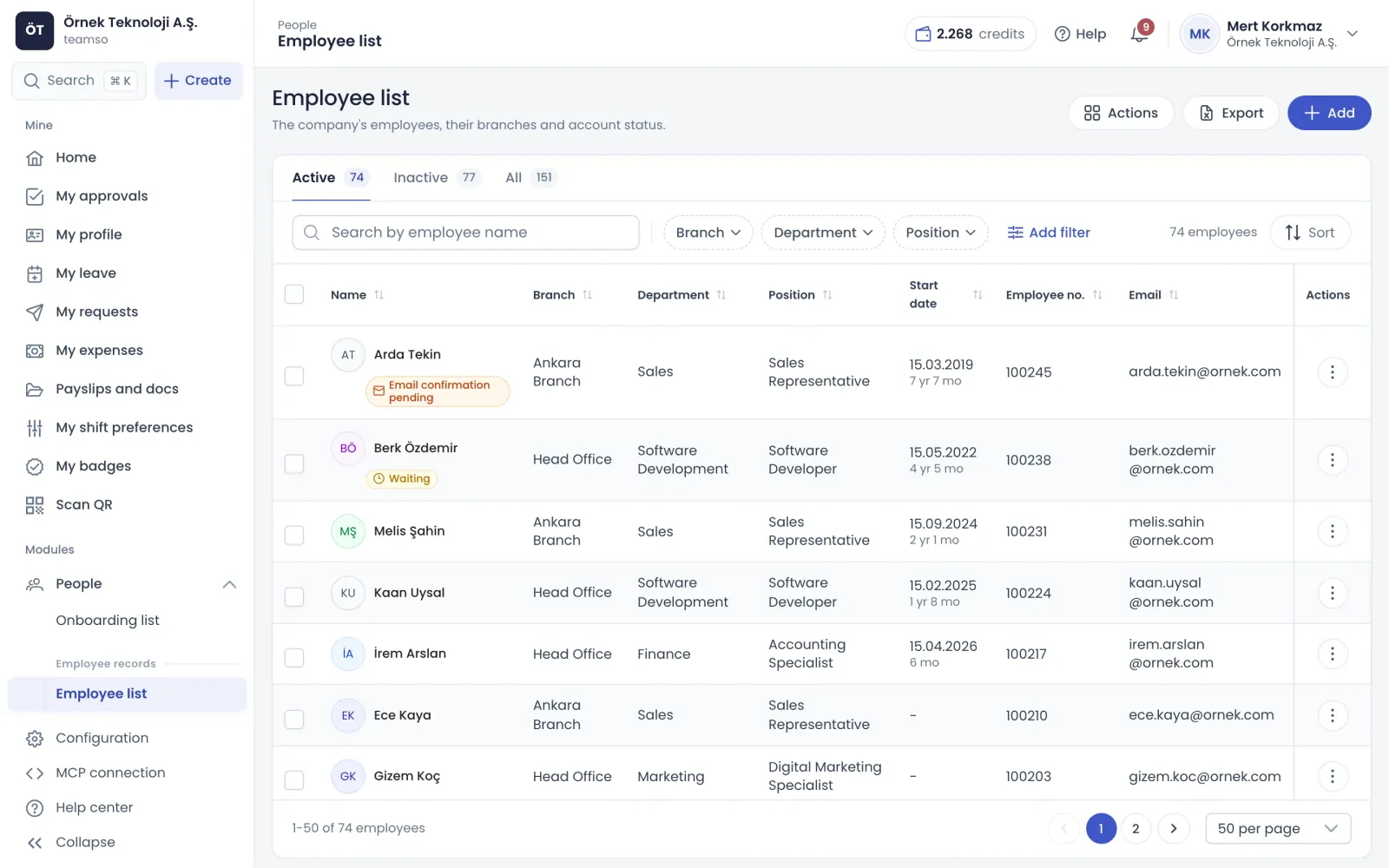
Employee list: branch, department, position and start date
What's inside

What the employee records module covers

From the day you add someone to the day they leave, every step of the personnel file happens on the same record. These are the three areas teams use most.

Registry

Digital personnel files with missing-data tracking

Contracts, seniority, salary, identity, family, foreign national details, work calendar, files, mandatory BES and statutory data each live in their own section. The registry screen lists every section for all employees at once and puts people without a record on a Missing tab. The salary record is what the payroll software uses to calculate pay.

  • A missing data card lists active employees with incomplete sections
  • Per-section Excel templates come prefilled with the employees you manage
  • File check flags bad rows and nothing is saved while errors remain
  • Contract end dates and training records can carry a reminder date
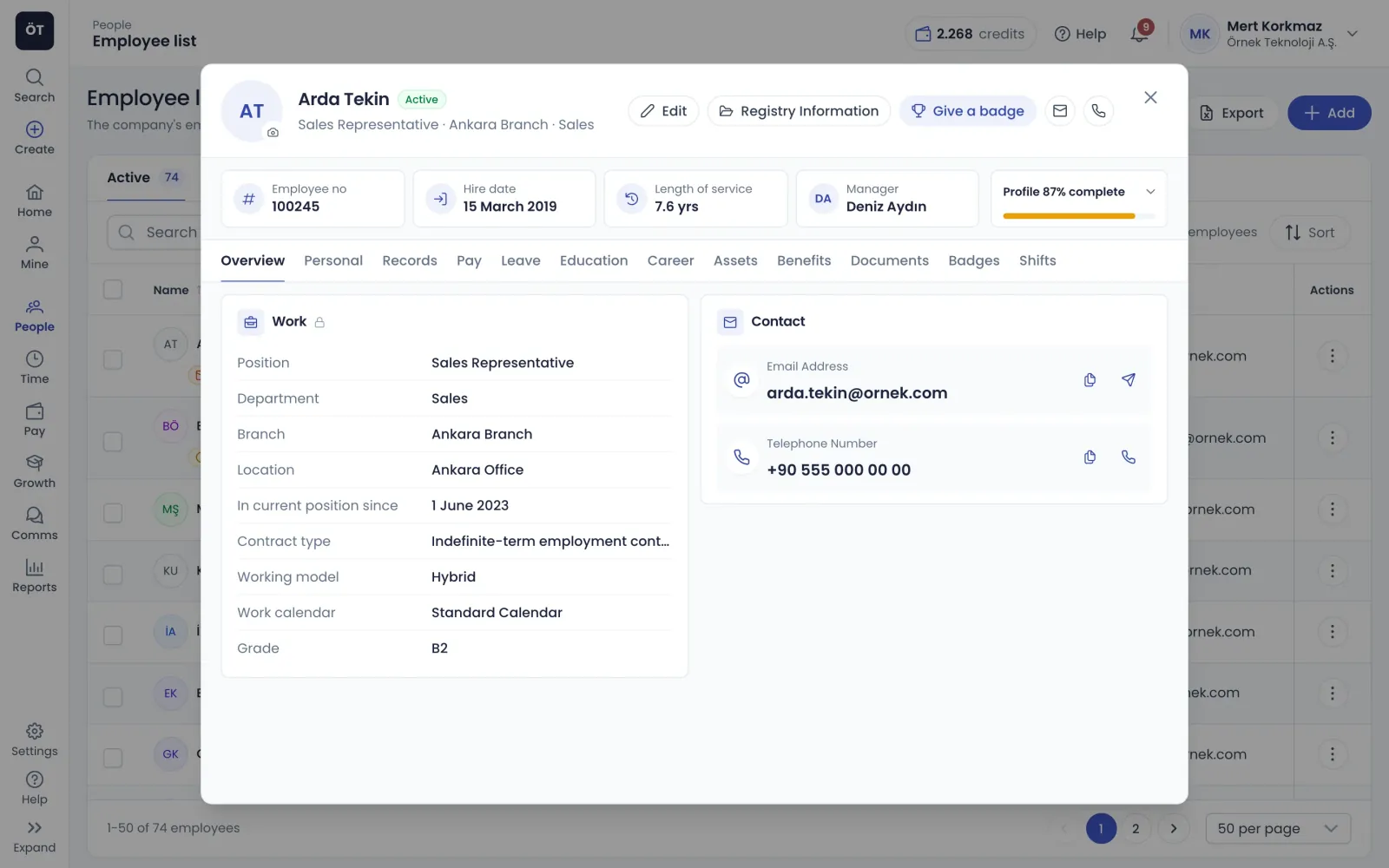
Employee card: job details, length of service, manager and contact
Organization

Branches, departments, positions and the org chart

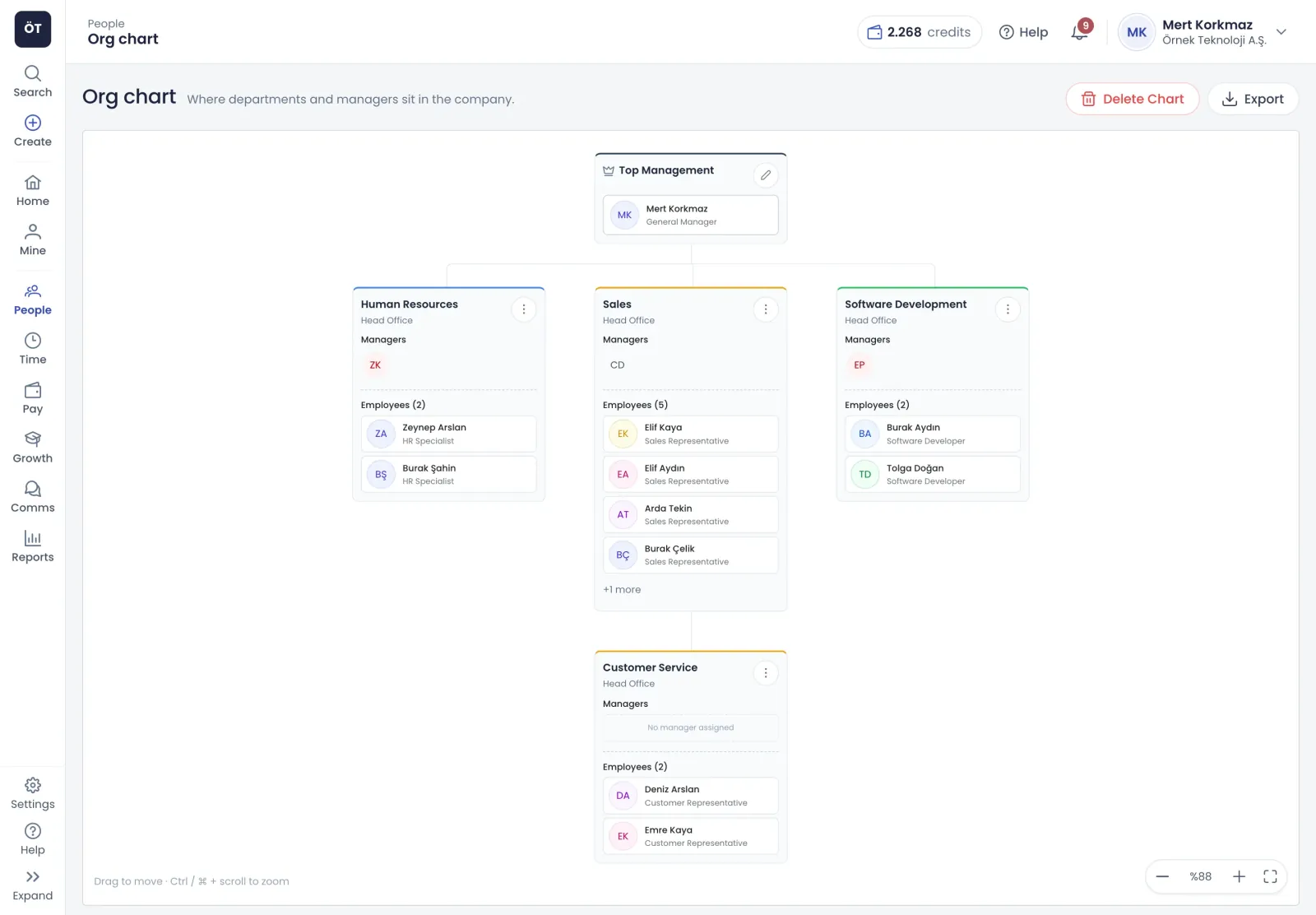
Create branches, departments and positions one by one or from Excel. Each employee gets a manager through their position record, and the manager step in leave, expense and request approvals runs on that record. The department-based org chart places people automatically according to their active position and can be downloaded as PNG or PDF.

  • One active position at a time, the previous one closes automatically
  • Bulk position upload sets the whole company's assignments in one file
  • AI org chart draft suggests a structure without touching your data
Org chart: departments, managers and employees
Joiners and leavers

Adding employees, data entry requests and deactivation

Add employees individually or from Excel. Enter the start date and social security number and the seniority record opens on its own. Employees can fill in their own gaps: a data entry request asks for identity, marital status and hiring documents, and the employee submits them with an SMS code. On exit, the reason code, a future date and rehire status are recorded.

  • Login details go out one by one or in bulk by email
  • Assigned assets must be returned before an employee is deactivated
  • Blacklisted people trigger a warning if you try to rehire them
  • Deactivated employees can be reactivated with a return date
Who sees what

Everyone sees the records that fit their role

Permissions are granted per menu and can be limited to specific branches.

A profile card driven by permissions

Click an employee's name and a card opens with general, personal, registry, pay, leave, education, career, assets, benefits, documents, badges, shifts and attendance sections. What appears depends on the viewer's permissions, so nobody sees a section they are not entitled to.

  • Managers see their team's job details and leave balances
  • The pay section opens only for people allowed to see salaries
  • Quick actions in the card header follow the same rules

My Info for every employee

Employees see their own profile, manager, seniority, registry summary, leave history, assigned assets and badges on one screen. They add their own education and career history and change their profile photo. The same screen works in the mobile app.

  • Education and career entries also appear in HR lists
  • Data entry requests open as a window on the home page
  • Asset forms are confirmed from the My Assets tab

Birthdays and HR reminders

The birthday screen highlights birthdays today and in the next seven days. Managers get a reminder before an employee's probation period ends, and company admins can receive a Monday summary email with the week's leave, birthdays and work anniversaries.

  • Birth dates are read from the identity record
  • Reminder months and lead days are set per company
  • Managers only see their own team in the summary
How it works

Set up employee records in four steps

  1. Build your structure

    Add branches, departments and positions. Positions belong to a department and departments to a branch, and you can upload all of it from Excel.

  2. Add your people

    Use the form for a handful of people and the Excel template for larger teams. The preview shows faulty rows before anything is saved.

  3. Assign managers

    Give every employee a position and a manager. Approval chains and the org chart both depend on this record.

  4. Fill the gaps

    Find missing sections on the registry screen, import them in bulk or ask employees to enter the data themselves.

FAQ

Frequently asked questions about Employee records

Contact us
What employee data can HR software like Teamso store?

Teamso keeps basic details, position and manager, workplace, contract, grade, salary, identity and family details, foreign national data, seniority, leave entitlements, work calendar, files, mandatory BES and statutory information in separate registry sections. E-documents and e-payslips sent to the employee are listed there too, and custom fields cover anything specific to your company.

Can I import employee records from Excel?

Yes. On the bulk add screen you download the template, fill it in, map the columns and fix any faulty rows in the preview. Registry sections have their own Excel templates, prefilled with the active employees you are responsible for. Nothing is written while a file still has errors, so you never end up with a half-finished import.

How do I find employees with missing personnel data?

Every section on the registry screen has All, With record and Missing tabs. A missing data card also lists active employees who lack identity, position, seniority, workplace or contract details and opens the missing section in one click. The missing registry task on the home page leads to the same list.

Can employees enter their own information?

Yes. HR can send a data entry request asking for identity, marital status and foreign national details plus hiring documents. The employee fills in the window that opens on their home page and submits it with an SMS code. HR then approves, rejects or asks for a revision. Employees add their education and career history themselves from My Info.

How do I offboard an employee in the HR system?

Use Deactivate on the employee list and enter the leaving date and the official exit reason. If assets are still assigned, they are returned first. With a future date the employee stays active until that day. You can mark rehire status as grey list or blacklist, and Teamso warns you if a blacklisted person is transferred in again from pre-boarding. Anyone can be reactivated with a return date.

Is the org chart created automatically?

Once you link departments to their parent departments and choose top management and department heads, employees appear on the card of their active position's department automatically. The chart can be downloaded as PNG or PDF. You can also ask AI for a draft chart; it only makes suggestions and never changes your chart or organisation data.

How is employee data protected?

Data is stored in Turkey and encrypted. Access is role based: viewing, adding, updating and deactivating employees are separate permissions that can be limited to branches. Sensitive sections on the profile card, such as pay, open only to people with the matching permission. Our security page explains the details.

Get started with Employee records

Try it free or explore the product with our team.

Request a demo