Leave management software: set the rules once, balances look after themselves

  • Nightly automatic accruals
  • SMS-verified requests, time stamp
  • Bulk balance import from Excel
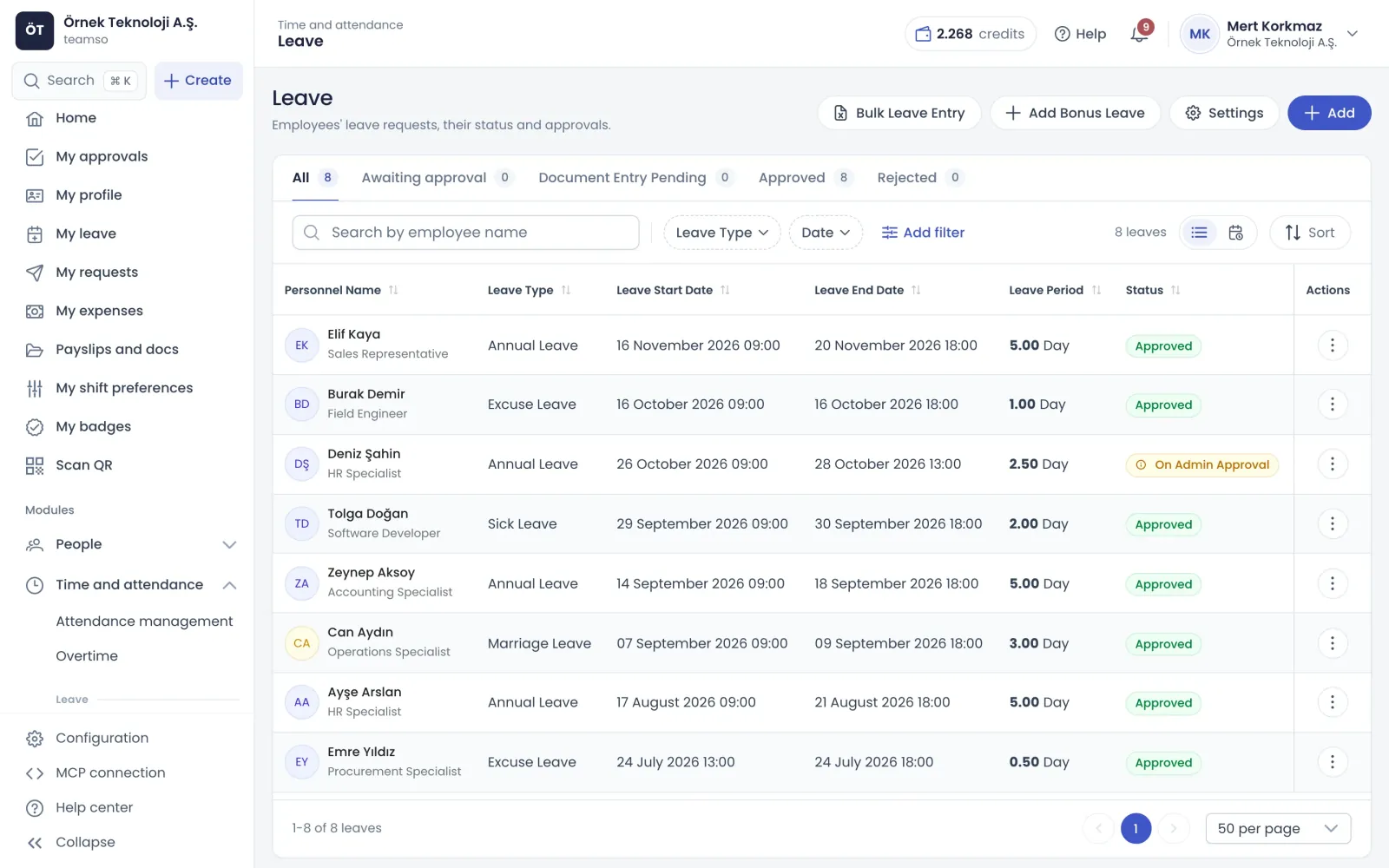
Leave screen: leave type, dates, duration and approval status
What's inside

What our leave management software covers

Leave rules, working calendars, requests, approvals, balances and reports all work together in one module.

Leave rules

Tie entitlements to rules and let the system do the maths

A leave rule holds categories such as annual or compassionate leave. For each one you choose unlimited, per-request or yearly limits, yearly or monthly accrual, and whether days are credited at the start or end of the period. Seniority bonus days, an age exception for employees under 18 or over 50, and negative balances are category settings too.

  • Start from ready-made templates or a blank category
  • Seniority table for extra days and age exception
  • Paid, unpaid and severance-exempt leave kept apart
  • Limit a category to female or male employees
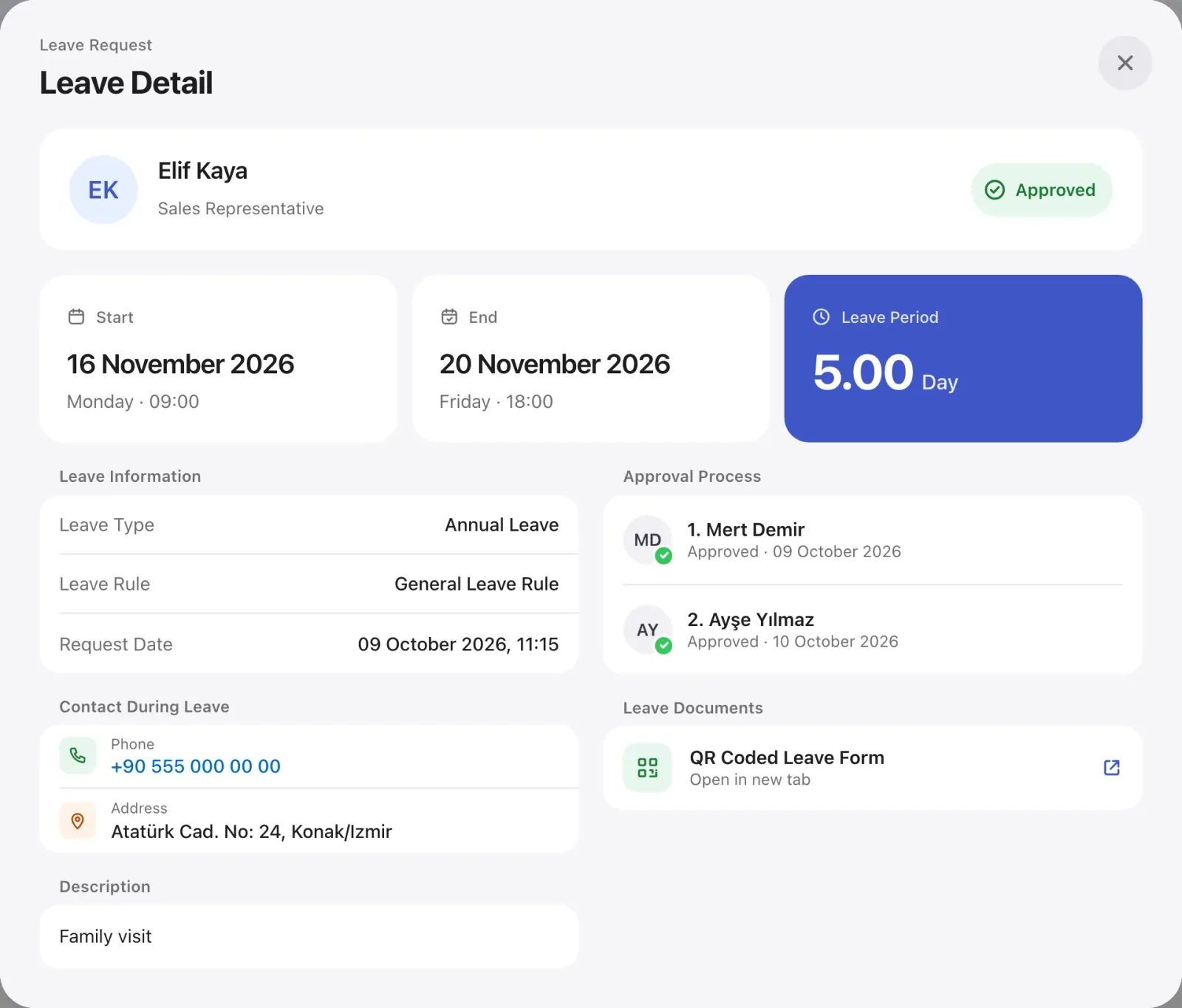
Leave detail: dates, duration, approval steps and leave document
Requests

Requests arrive SMS-verified and follow your approval flow

Employees create a request from the quick add area on the home page or in the mobile app. The number of days is worked out from their working calendar and public holidays, and submission is confirmed with an SMS code. Approvers in the department's flow approve or reject from their home page inbox. Categories that need a document wait for the upload first.

  • Automatic day count from the working calendar
  • Multi-step approval flows set up per department
  • E-mail and in-app notifications at every step
  • QR-coded leave form and leave time stamp
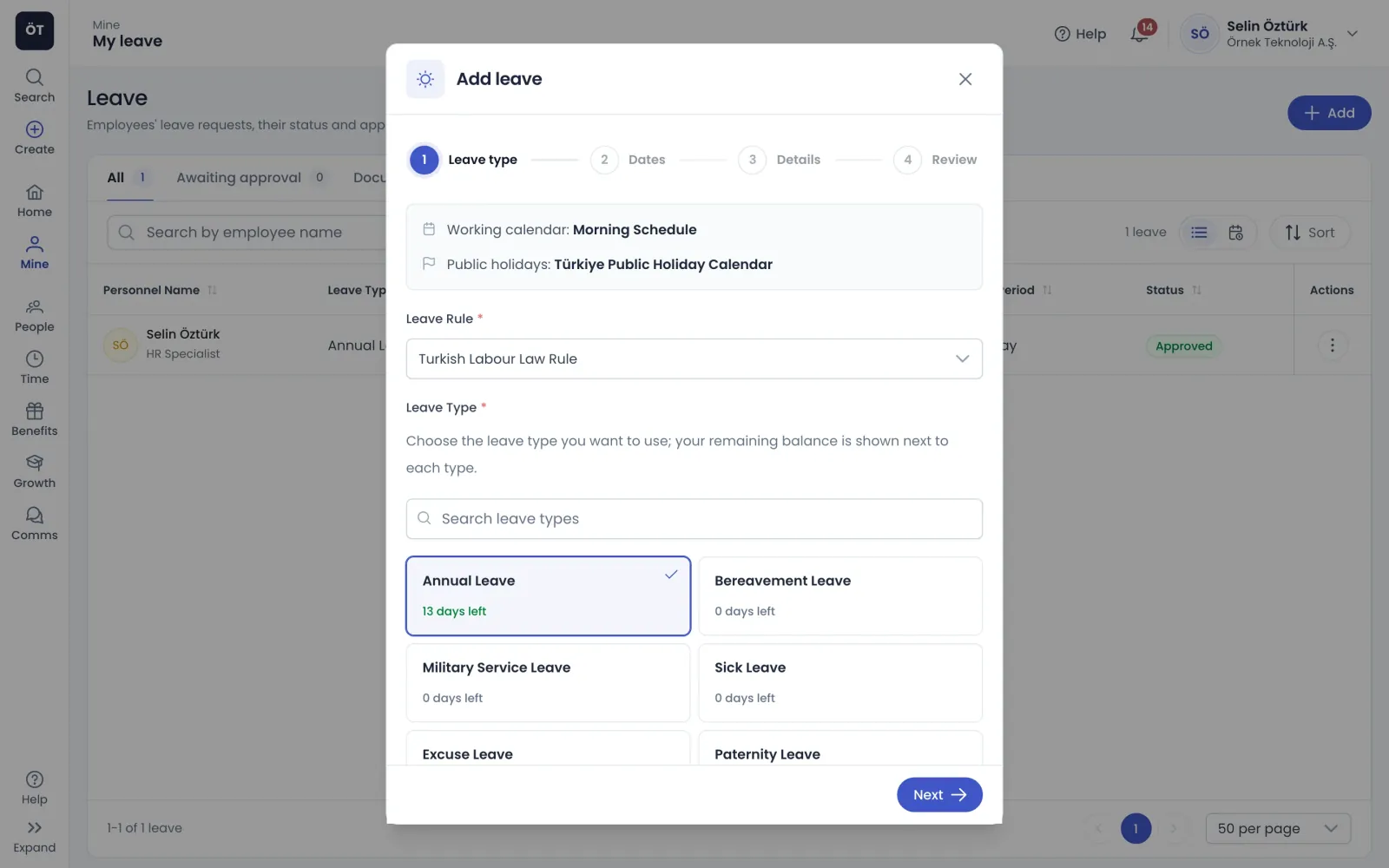
Add leave: leave type selection with remaining balance for each type
Carry-over

Carried-over and forfeited days stay visible

For each category you choose what happens to unused days at period end, from five carry-over options: entitlement expires, unlimited carry-over, carry-over up to a cap, carry-over usable within a set number of days, or carry-over with an expiry period. Carried and lost days appear as separate balance lines, so you can see exactly who lost which days and why.

  • Days above the cap are recorded as lost
  • Carried days expire when their usage window ends
  • Negative balances move into the new period
  • Employees see their remaining balance on a home card
Admin tools

Leave management tools for the HR team

Bulk work from setup to month end has its own screens.

Bulk leave import with Excel

During setup or reconciliation you download a template that comes pre-filled with the employees you manage and their current balances. Enter used leave, extra entitlement or the target remaining balance, then preview every row before saving.

  • Target balance rows record the difference automatically
  • Filter rows with errors or warnings
  • Current and new balance previewed side by side

Leave and bonus days for employees

Authorised users add leave for several employees at once with multiple leave entry, or for one person from their record. Add Bonus Leave grants extra entitlement by hand, outside the accrual rules.

  • Enter leave for many employees in one go
  • Approve and continue saves leave as approved
  • Bonus leave for one-off extra entitlement

Leave reports and reconciliation form

Used leave, accrual movements and balance reports export to Excel. The leave reconciliation form gives a single employee's seniority, balance by leave type and leave taken as a PDF ready to sign.

  • Filter by pending, approved or rejected
  • Accrual movements including carry-over, loss and overtime
  • Signature-ready PDF reconciliation form

Who sees whose leave

Visibility rules decide whose upcoming leave each employee sees on the team card on the home page. Options are own only, branch, department, position, direct reports or the whole company.

  • Assign rules per employee or in bulk
  • Manager mode updates as the team changes
  • Act on leave directly from the calendar view
How it works

Move to leave management in four steps

  1. Assign calendars

    Set up the public holiday and working calendars and assign them to employees, since day counts are based on them.

  2. Build leave rules

    Add categories to a rule, configure accrual, seniority and carry-over, then assign the rule to employees.

  3. Define approval flows

    Set approval steps for each department; requests in departments without a flow are approved automatically.

  4. Import balances

    Load past leave taken and opening balances in one go with the Excel template and you are ready to go.

FAQ

Frequently asked questions about Leave management software

Contact us
How does leave management software calculate annual leave accrual?

Entitlements are calculated automatically every night from the leave rule assigned to the employee. Each category sets the number of days, yearly or monthly accrual, crediting at the start or end of the period, and a seniority table for extra days. If the age exception for employees under 18 or over 50 is on, the employee gets the higher of the two results.

Does unused leave carry over to next year?

You decide per category. There are five options: entitlement expires, unlimited carry-over, carry-over up to a cap, carry-over usable within a set number of days, or carry-over with an expiry period. Carried and forfeited days appear as separate lines in the balance. A negative balance, meaning leave owed, is never wiped and moves into the new period.

How do I bring existing leave balances into the system?

Use Bulk Leave Import on the leave screen to download the Excel template, which arrives filled with employees, leave rules and current balances. On each row enter used leave, extra entitlement or the remaining balance it should be. The file is checked, each row's current and new balance is previewed, and you save once there are no errors.

Can employees request leave from a mobile app?

Yes. Employees can request leave on the web or in the mobile app and see their remaining balance on the leave balance card on the home page. Submitting a request needs the SMS verification code sent to the mobile number on their profile. People signed in to the mobile app also receive leave notifications as push notifications on their phone.

What happens to requests if no approval flow is set?

Approval flows are defined per department. If a department has no approval steps, requests from its employees are approved automatically. If a flow exists, the request goes to each step's approvers in turn, and the requester gets e-mail and in-app notifications when it moves to the next step, is approved or is rejected.

Can a leave type be limited to female or male employees?

Yes. In the category's who can use it setting you choose all employees, female employees only or male employees only. Even though the rule is assigned to everyone as a whole, the category is only visible to and accrues only for employees of the selected gender. Employees without a recorded gender can only use categories open to everyone.

How is approved leave cancelled?

Employees can withdraw their own request while it is still pending. Approved leave is cancelled by someone with delete permission removing the record from the leave screen, confirmed with an SMS code. The days go back into the balance and the employee's manager is notified. If the leave falls in a closed payroll period, that payroll stays unchanged and you correct the difference in the open period.

Get started with Leave management software

Try it free or explore the product with our team.

Request a demo